Which DecorAI Feature Should You Use? A Decision Guide for Every Room Project
A decision guide to every DecorAI feature: pick the right one for restyling a room, changing only the floor, clearing furniture, fixing one corner, redesigning the exterior or pricing a plan, and learn how to chain them.
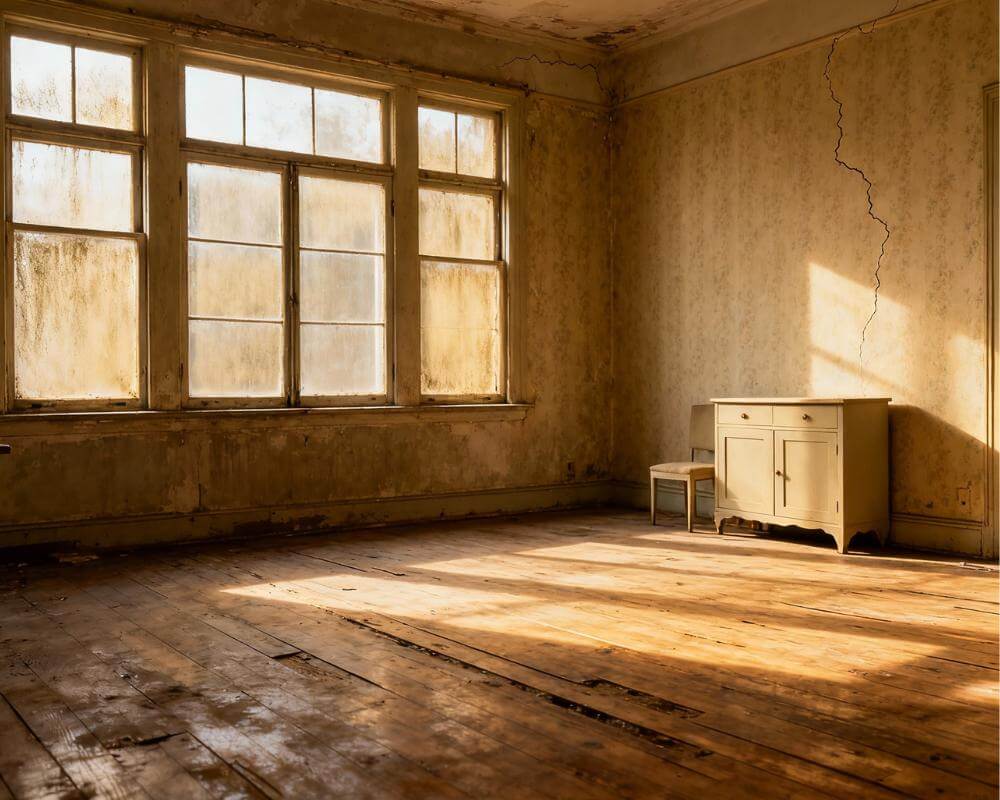
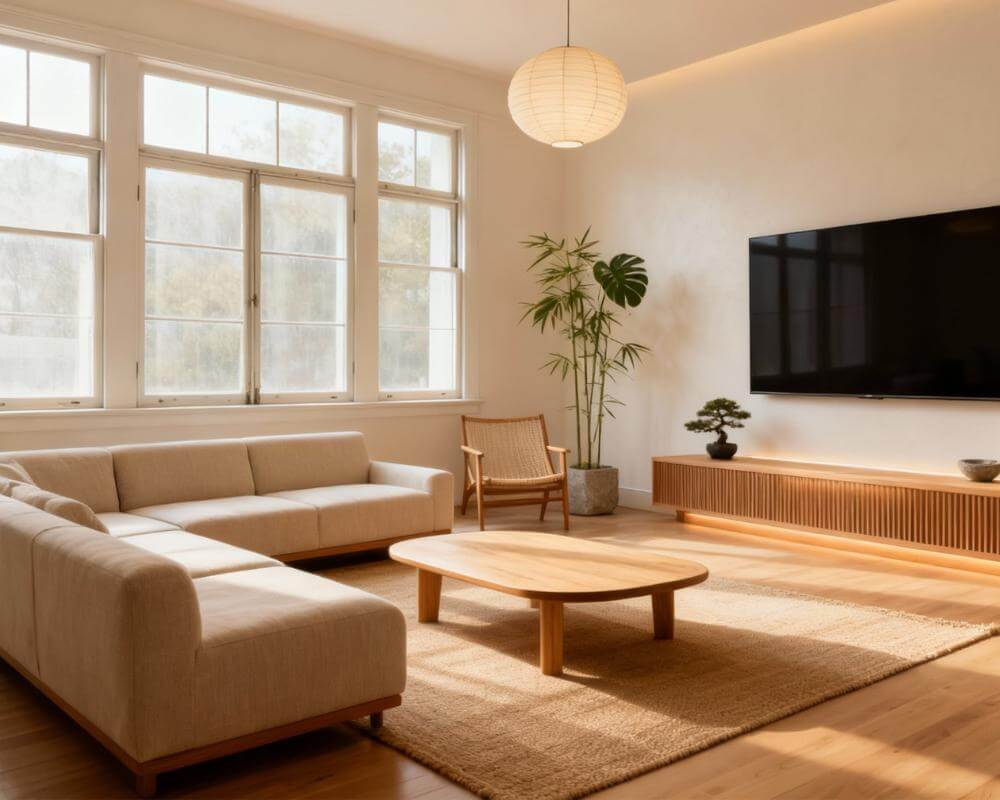
The hardest part of redesigning a room is rarely the design. It is knowing where to start. Choosing the right DecorAI feature saves you from restyling a whole room when you only wanted new flooring, or from painting over a sofa you actually love. DecorAI is an AI interior design app that lets users transform photos of existing rooms into realistic redesign concepts, and it is a suite of focused features rather than a single button, each built for a different kind of decision.
This guide works from the project to the feature. Find the change you want to make, see which part of DecorAI handles it, and learn how to chain features together when a project needs more than one step.
Key Takeaways
- Pick by the change you want. Interior Designer restyles a whole room, the Floor Planner swaps only the floor, Empty the Room clears furniture, and Virtual Staging furnishes a bare room.
- Narrow tools protect what you like. Inpainting changes only the area you paint over, and the Corner Designer changes one corner, so the rest of the photo stays exactly as it was.
- Chain features for bigger jobs. A common sequence is Empty the Room, Virtual Staging, Inpainting to fix one detail, then a Design Report to price the result.
- Analysis and Reports are Pro. AI Room Analysis and Design Reports require a Pro subscription, while the design features draw on the daily allowance.
- Fast to experiment. Designs are usually generated in under 10 seconds, and DecorAI offers three free generations per day without requiring an account or credit card.
- Try DecorAI on a photo of the room you are planning.
Which DecorAI Feature Matches My Project?
Start with this map. The left column is what you want to happen, and the right column is where to go.
- Restyle a whole room from a photo: AI Interior Designer.
- See different flooring only: AI Floor Planner.
- Remove all the furniture and clutter: Empty the Room.
- Furnish an empty or half-empty room: Virtual Staging.
- Change one sofa, wall or radiator: the Inpainting editor.
- Place a specific product you found in a shop: Furniture Import.
- Fix an awkward, dead corner: AI Corner Designer.
- Redesign the facade or curb appeal: AI Exterior Design.
- Redesign a garden, patio or balcony: AI Garden Design.
- Copy the look of an inspiration image: Style Transfer or a Moodboard redesign.
- Start from a description with no photo: Design Concepts.
- Get a scored critique of your room: AI Room Analysis.
- Get costs and an action plan: a Design Report.
The rest of this guide explains the thinking behind each choice, because the right feature is usually the one that changes the least.
When Should I Restyle the Whole Room?
Use the AI Interior Designer when you are open to changing the overall look: furniture, finishes, color and mood together. You choose a room type and a style from more than 60, add optional colour schemes and design options, and DecorAI returns a redesigned version of your actual room, keeping the walls, windows, ceiling height and camera angle.
It is the right starting point for undecided people. If you do not know which style you want, generate the same photo in three or four styles and compare them side by side. Seeing your own room in Scandinavian, Japandi and Industrial is a faster way to find your taste than browsing catalogues. Our guide on how to choose an interior design style goes deeper, and how DecorAI design controls work explains the options that keep results close to your real room.
When Is a Narrower Feature the Better Choice?
If you are happy with most of the room, a focused feature is safer than a full restyle, because it can only change what it is meant to change.
- AI Floor Planner. Replaces only the visible flooring and leaves furniture, walls, windows and lighting unchanged. Floor types include hardwood, tile, carpet, laminate, vinyl, concrete, stone and bamboo, with materials and patterns such as oak, walnut, marble, herringbone and chevron. See the AI Floor Planner page for the full range.
- Inpainting editor. You paint over one area with an adjustable brush, describe what should be there, and only that region changes. It suits replacing one sofa, removing a radiator or changing a single wall. The Inpainting guide shows how to mask cleanly.
- Furniture Import. Upload your room and a photo of one specific item from a shop, showroom or marketplace listing, and DecorAI places it with matching scale, perspective and lighting. Read more in our Furniture Import guide.
- Style Transfer. Applies the palette, materials and visual language of a reference image, such as a fabric, artwork or Pinterest photo, to your room. See how Style Transfer works.
What About One Awkward Corner?
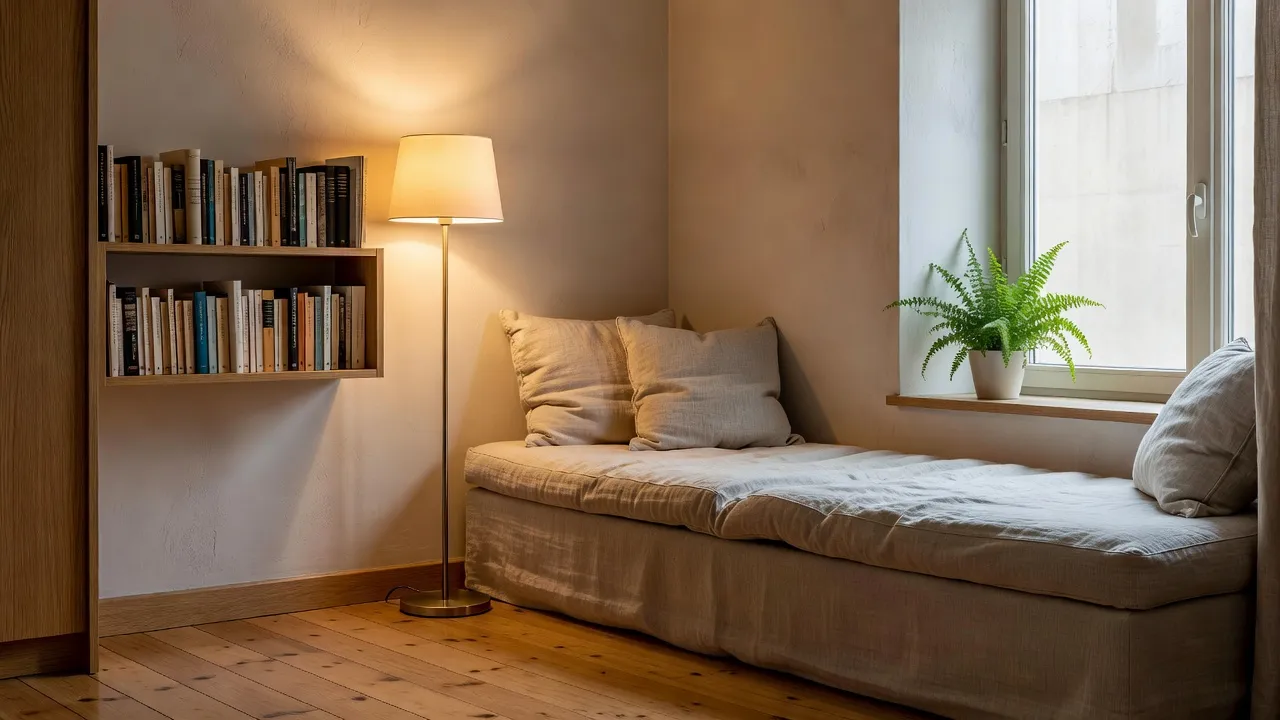
The AI Corner Designer transforms a single awkward, empty or underused corner. You upload a photo of the corner and pick an idea: a reading nook, compact home office, built-in storage, pet area, coffee bar, plant corner, entryway bench, kids play corner, mini bar or display shelves. Because it works on one spot, you can try several ideas for the same corner without touching the rest of your room. Our guide to awkward-space ideas with the Corner Designer has examples.
When Do I Use Empty the Room and Virtual Staging?
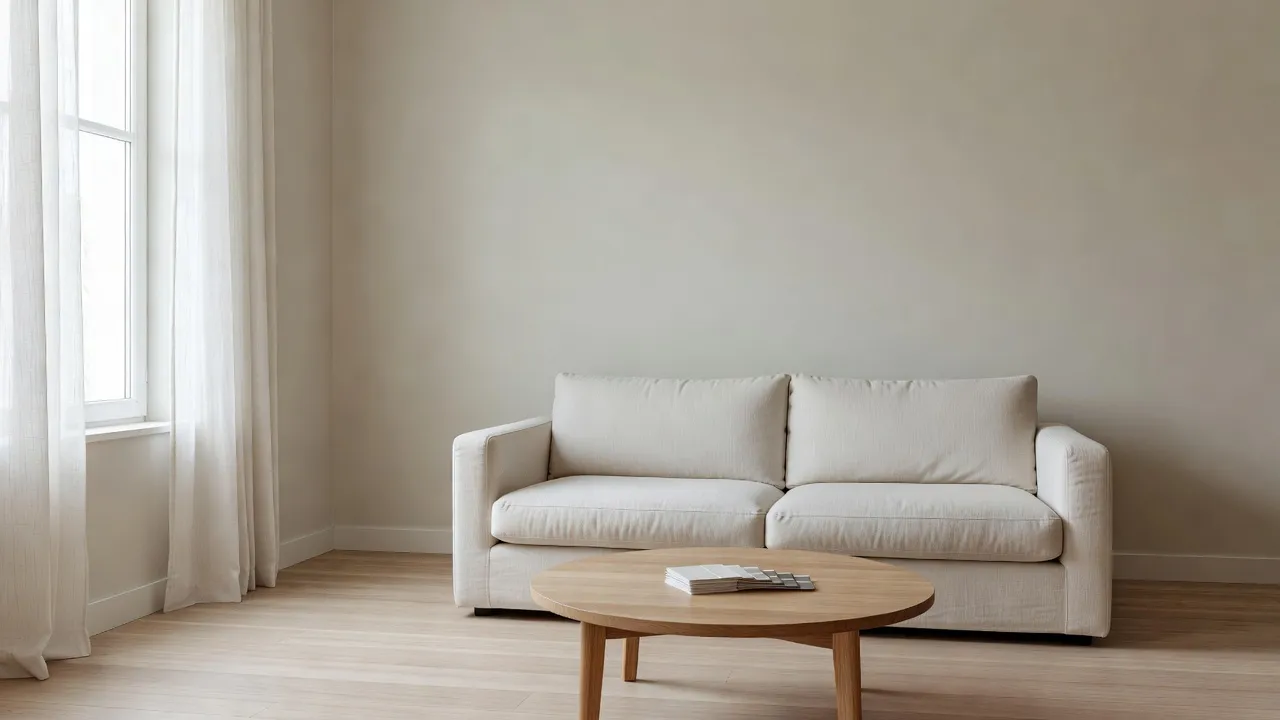
These two features handle the two ends of the same job. Empty the Room removes furniture and clutter from a photo of a furnished room while keeping the floor, walls, windows and architecture. It is useful before planning a renovation, before moving, and as the first step toward a clean staged photo. Virtual Staging does the opposite: it furnishes an empty or under-furnished room in a room type and style you choose, from living room, bedroom, kitchen, dining room, office, kids room and bathroom, in styles such as Modern, Scandinavian, Minimalist, Industrial, Bohemian, Mid-Century, Coastal or Japandi.
If the room is already empty, go straight to Virtual Staging. If it is full, run Empty the Room first and stage the cleared result, which usually works better than asking for a single replace-everything change. See removing furniture from a photo with AI and our guide to furnishing an empty room, and the AI Virtual Staging page for the feature itself. If you are preparing a property for sale, remember to label virtually staged images as digitally staged.
Match the Feature to Your Room
Upload one photo and try the feature that fits your project. Restyle, empty, stage or change a single detail, and compare versions in seconds.


Which Feature Handles the Outside of the House?
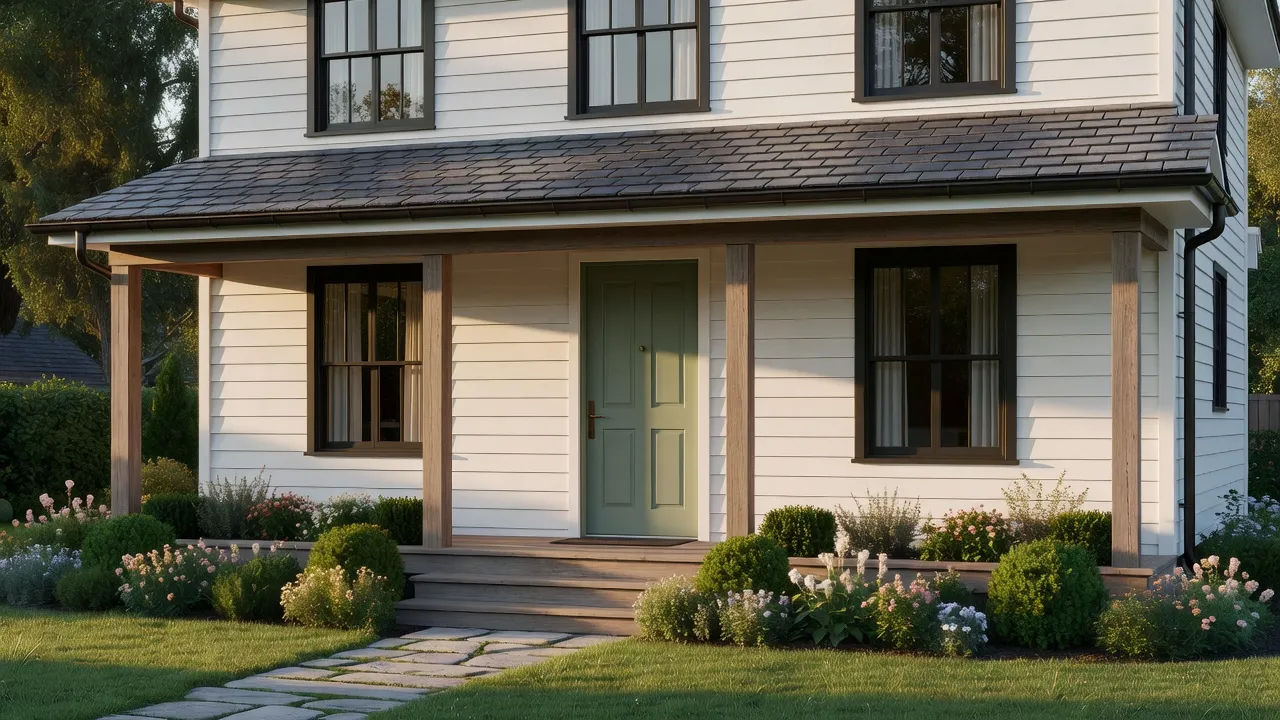
AI Exterior Design redesigns the outside of a building from one photo. DecorAI supports ten building types and ten architectural styles and can change siding, roofing, windows, doors, landscaping, exterior lighting, garage doors, porches, shutters and trim while keeping the building's real shape. AI Garden Design covers outdoor spaces such as a backyard, front yard, patio, balcony, rooftop, courtyard, terrace, side yard, vegetable garden or flower garden, with elements like planting, water features, pathways, outdoor lighting, seating, a pergola, a fire pit or an outdoor kitchen.
Choose Exterior Design when the building itself is the subject and Garden Design when the space around it is. For a full project you may use both. The AI Exterior Design page, the AI Garden Design page and our walkthrough of how exterior design works cover the detail.
What If I Have No Photo, or Only Inspiration?
Two features start from something other than your own room. Design Concepts generates an original space from a written description when you have no photo to start from, which suits new-build planning, mood setting and early ideas. See the Design Concepts guide. Moodboards let you collect inspiration from anywhere, including Pinterest and Instagram, and then redesign your real room in the style of the board. Our article on DecorAI Moodboards explains the workflow.
When Do I Need Room Analysis or a Design Report?
These are the planning features, and both require Pro. AI Room Analysis critiques the room you have today from a photo: an overall score out of 100, an architecture score, a wellbeing score, three strengths, three weaknesses and an improvement prompt you can hand to the Interior Designer. A Design Report explains a design you have already generated, with a style profile, a colour palette with hex values, a before-and-after comparison, five to seven prioritised recommendations, a three-tier cost estimate, an ordered action plan and a branded PDF export.
The natural order is analysis first, then design, then report. Treat the scores as a structured opinion rather than a measurement, and the cost estimate as a planning-grade order of magnitude rather than a quotation. Our guide to AI Room Analysis and Design Reports covers both in depth.
How Do I Chain Features Into a Workflow?
Bigger projects rarely need only one feature. Here are three sequences that work well.
- Clear and furnish a room. Empty the Room, then Virtual Staging in a style that suits the space, then Inpainting to fix one detail you would change.
- Plan a renovation. Room Analysis to find the weak points, the Interior Designer to test two or three directions, the Floor Planner to compare flooring, then a Design Report to turn the winner into costs and an action plan.
- Test a purchase. Style the room first, then use Furniture Import to place the exact sofa you are considering and judge scale before you order.
Keep everything for one room in one place. Projects and History let you review every version in order, and the design assistants can answer questions before you generate. Note that the free daily generations are shared across the design features, so an interior redesign, a garden redesign and a staging all draw from the same allowance.
What Mistakes Should I Avoid When Choosing?
- Using the biggest feature for a small change. A full restyle can shift details you wanted to keep. If you only want new flooring or one new sofa, use the narrow feature.
- Skipping the clean-up step. Staging a still-furnished room works better after Empty the Room.
- Treating any result as a survey. Every output is a visual concept. Measure the room before you buy or build.
- Starting with a poor photo. A level, well-lit photo helps every feature. See how to photograph your room for AI design.
Choosing a DecorAI Feature FAQ
Which DecorAI feature should a beginner start with?
Start with the AI Interior Designer. Pick a room type and a style, press generate, and compare two or three styles on the same photo. Every extra control is optional.
How do I change only the floor in a photo?
Use the AI Floor Planner. It replaces only the visible flooring and leaves the furniture, walls, windows and lighting unchanged.
What is the difference between Empty the Room and Virtual Staging?
Empty the Room removes furniture and clutter while keeping the architecture. Virtual Staging furnishes an empty or under-furnished room. Used together, they clear a room and then furnish it.
Can I change just one object in a room?
Yes. The Inpainting editor changes only the area you paint over, and Furniture Import places one specific item you have a photo of.
Which features need a Pro subscription?
AI Room Analysis and Design Reports require Pro. Pro also removes the watermark from generated images.
How fast is it?
Designs are usually generated in under 10 seconds and can sometimes be ready in approximately five seconds; peak periods may take longer.
Conclusion
The best way to use DecorAI is to match the feature to the size of the change. Restyle the whole room when you are open to anything, use the Floor Planner, Inpainting or Corner Designer when you want to protect what you like, clear and stage rooms with Empty the Room and Virtual Staging, and finish bigger projects with Room Analysis and a Design Report. Pick one photo, pick one feature, and see the difference in seconds. Explore the full feature directory on the DecorAI app page, or open DecorAI and try it on your own room.
Visualize Your Dream Home Instantly
Don't just read about it. Experience the power of AI interior design with DecorAI's free tool.
Start Designing for FreeWritten by
DecorAI Team
Editorial Team