DecorAI Projects and History: Keep a Whole Renovation Organized in One Place
How DecorAI's Projects and History features work: group every design for one room into a guided Analyze, Plan and Redesign workflow, find any past generation instantly, and share progress with a partner or client.

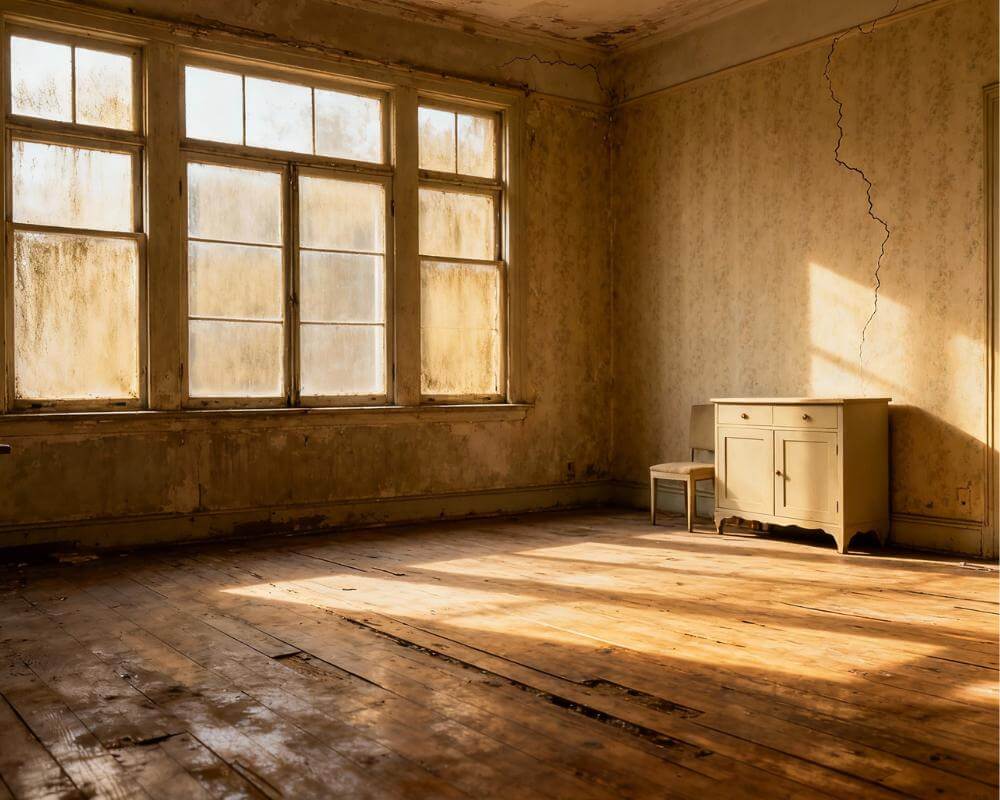
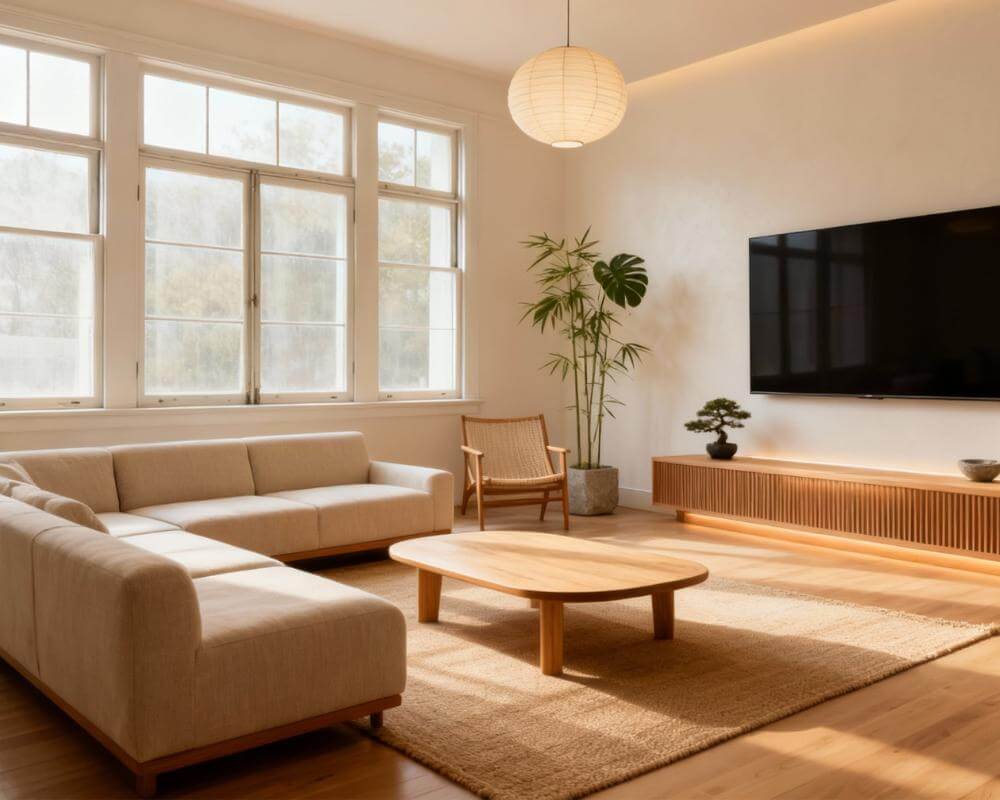
A single AI-redesigned photo is easy to lose track of once you've generated ten of them. DecorAI is an AI interior design app that lets users transform photos of existing rooms into realistic redesign concepts, and once a renovation spans more than one room — or more than one afternoon — two features do the organizing for you: Projects group everything related to one space into a guided workflow, and History keeps every design you've ever generated, filterable by the project it belongs to.
This guide covers what a Project actually is, how the Analyze, Plan and Redesign stages fit together, how History works across your devices, and how to share progress with a partner, a client, or the DecorAI Community once a room is ready to show.
Key Takeaways
- A Project groups one space or job — a written plan, a checklist, a status, and every design generated for it — through three stages: Analyze, Plan and Redesign.
- History saves every generation automatically and, if you're signed in, syncs it to your account across phone, tablet and the web app.
- Filter History by Project to review only one room's designs, in order — the fastest way to present options to a partner or a client.
- Sharing is separate from publishing. You can send a design to social apps or a message, and separately choose whether to publish it to the DecorAI Community.
- Try DecorAI free and start a Project for the room you're working on next.

What Is a Project, and Why Would You Use One Instead of Just Generating a Design?
Generating a single design in DecorAI takes seconds and needs no setup at all — that's the point of the free daily generations. But a real renovation is rarely one photo and one style choice; it's a room you photograph, a handful of directions you compare, a plan you write down, and a list of what to actually buy or change, usually spread across more than one sitting. A Project is DecorAI's container for that whole arc: one project per room or job, holding a written plan, a checklist of what needs to happen, a status, and every design generated while it's active.
The alternative — generating designs one at a time with nothing tying them together — works fine for a quick "what if" render, but it falls apart the moment you're comparing five kitchen directions from two weeks ago against three new ones, or trying to remember which living room design you'd actually settled on. Projects exist for exactly that gap between a fun preview and an actual renovation you're going to see through.
How Does the Analyze, Plan, Redesign Workflow Work?
Every Project moves through the same three stages:
- Analyze — start from an honest read of the space you're working with. This is the same engine behind DecorAI's Room Analysis and Design Reports: what's working, what isn't, and where the money is best spent.
- Plan — a written plan and a checklist of what actually needs to happen, in order, so the project is a to-do list rather than just a mood.
- Redesign — the generated designs themselves, as many directions as you want to compare, all attached to this one project.
You don't have to complete a Project in one visit. Open it again tomorrow, generate two more directions, tick off a checklist item once the paint is actually on the wall, and mark the project Plan, Redesign or Completed as it moves along. If you're tackling more than one room — the situation designing a whole home room by room always runs into — the advice there holds here too: create one project per room and keep the same style choice across all of them, so the finished result reads as one coherent home rather than a set of disconnected renders.

Where Do All Your Designs Go? How History Works
Outside of Projects specifically, every single generation you make in DecorAI — whether or not it's attached to a project — is saved automatically to History. History keeps the finished design, the original photo you started from, and the settings you used to generate it, so you can reopen, compare, share, or delete any past design without regenerating it from scratch.
If you're signed in, History lives in your account rather than only on the device that created it, which means it appears the same way on your phone, your tablet, and the web app. Using DecorAI signed out works for a quick one-off render, but that history exists only on that device — it won't survive a reinstall or a new phone, and it won't show up if you open the web app on a different computer later. Signing in before you build up work you actually care about is the one step that makes History permanent rather than local.
How Do You Review Every Design for One Room, in Order?
Open History and apply the project filter. Every design generated while a project was active is tagged with it, so filtering shows only that room's work, in the order you created it — not mixed in with designs from three other rooms or last month's experiments. This is the fastest way to present a set of options to someone else: filter to the project, then go through the versions side by side rather than hunting through a full camera roll of unrelated renders.
That matters most in exactly the situations covered in DecorAI's own renovation planning workflow — comparing three kitchen directions with a partner before committing, or walking a client through everything generated for their living room in one sitting. A filtered, ordered view does that in a way a scattered History never could.
Organize Your Next Renovation From the First Photo
Start a Project for the room you're working on, generate as many directions as you need, and find every version again instantly — filtered, in order, on any device you're signed into.


How Do You Share a Design, or Publish It to the DecorAI Community?
Once a design is ready to show someone, the share action on any finished design sends it to Pinterest, Instagram, TikTok, WhatsApp, Facebook, X, email, a message, or straight into any other app on your device. That's separate, and opt-in, from publishing to the DecorAI Community — a public in-app feed where users browse, search and filter each other's designs, see what's trending, like and bookmark favorites, and publish their own. Nothing you generate is ever public unless you choose to publish it, you can delete your own posts at any time, and inappropriate content can be reported directly from the post.
The two audiences rarely overlap in practice: sharing to a message or social app is usually for one specific person — a partner, a landlord, a client — while publishing to the Community is for finding styles you didn't know you liked, by filtering to a room type close to yours and seeing what other people generated for theirs.
Who Actually Needs Projects Instead of One-Off Designs?
- Homeowners renovating more than one room, who need the same style decision to hold across a living room, a hallway and a bedroom generated on three different days.
- Renters planning smaller, reversible upgrades — the same project-based approach works for the room-by-room comparisons covered in DecorAI's renter-friendly design guide, just scaled down to furniture and textiles instead of finishes.
- Interior designers and agents presenting options, who use the project filter in History to walk a client through everything generated for their space in one ordered pass, then hand over the direction that gets picked.
- Anyone who works on a renovation in short bursts rather than one sitting — a Project's checklist and status pick up exactly where you left off, instead of relying on memory or a separate note somewhere else.
The full set of tools a Project can pull from — Room Analysis, Design Reports, the AI Interior Designer, Floor Planner, Furniture Import and Inpainting among them — is listed in the DecorAI feature directory.

Does a Project Follow You Across Phone, Tablet and the Web App?
Yes, as long as you're signed into the same account. Projects, History and Moodboards all sync between DecorAI's mobile apps and the web app, and signing in also restores past purchases across platforms — so a Project started on a phone in a showroom can be picked up that evening on a tablet or laptop with everything, including the checklist and every design generated so far, exactly where it was left. DecorAI's other mobile-specific features — widgets, Live Activities tracking a render from the Lock Screen, and Siri Shortcuts including a direct decorai://projects deep link — are built around the same idea: making it faster to get back into a Project you already started, not creating a separate silo of work per device.
DecorAI Projects and History FAQ
What's the difference between a Project and History?
History is the full record of every design you've ever generated. A Project is a container for one room or job — a plan, a checklist, a status — that groups a subset of those designs together. Every design in History can be filtered by the project it belongs to.
Do I need to sign in to use Projects and History?
You can use both while signed out, but the work only exists on that device. Sign in and History, along with any Projects, is stored in your account and appears on every device you use — phone, tablet and the web app.
Does deleting a Project delete the designs inside it?
No. Deleting a project removes the project itself — its plan, checklist and status — but not the designs, unless you remove those separately from History. Deleting a design, on the other hand, removes it from your account and from every device signed into it.
Is publishing to the Community the same as sharing a design?
No. Sharing sends a design to an app like Pinterest or a message — that's a one-time action to one destination. Publishing to the Community puts it on a public, searchable in-app feed. The two are independent: you can share a design and never publish it, or publish it without ever sharing it elsewhere.
Can I use one Project for a whole house instead of one room?
You can, but DecorAI's own guidance is to create one project per room and keep the same style across all of them — it keeps each room's checklist and design history readable on its own, while still adding up to a coherent whole home once every project is complete.
Conclusion
Projects and History are the part of DecorAI that turns a folder of pretty renders into an actual plan you can act on — a guided Analyze, Plan, Redesign workflow for each room, a full record of every design you've generated, and a way to filter straight to one project's options when it's time to decide or show someone else. Start a Project for the room you're working on at DecorAI, explore the rest of the toolkit in the feature directory, or head back to the DecorAI homepage to get started.
Visualize Your Dream Home Instantly
Don't just read about it. Experience the power of AI interior design with DecorAI's free tool.
Start Designing for FreeWritten by
DecorAI Team
Editorial Team