AI Inpainting: Fix One Thing in a Room Photo Without a Full Redesign
How DecorAI's Inpainting editor works: paint over one item in a room photo, describe the replacement, and generate a change that touches only that area — nothing else in the photo moves.
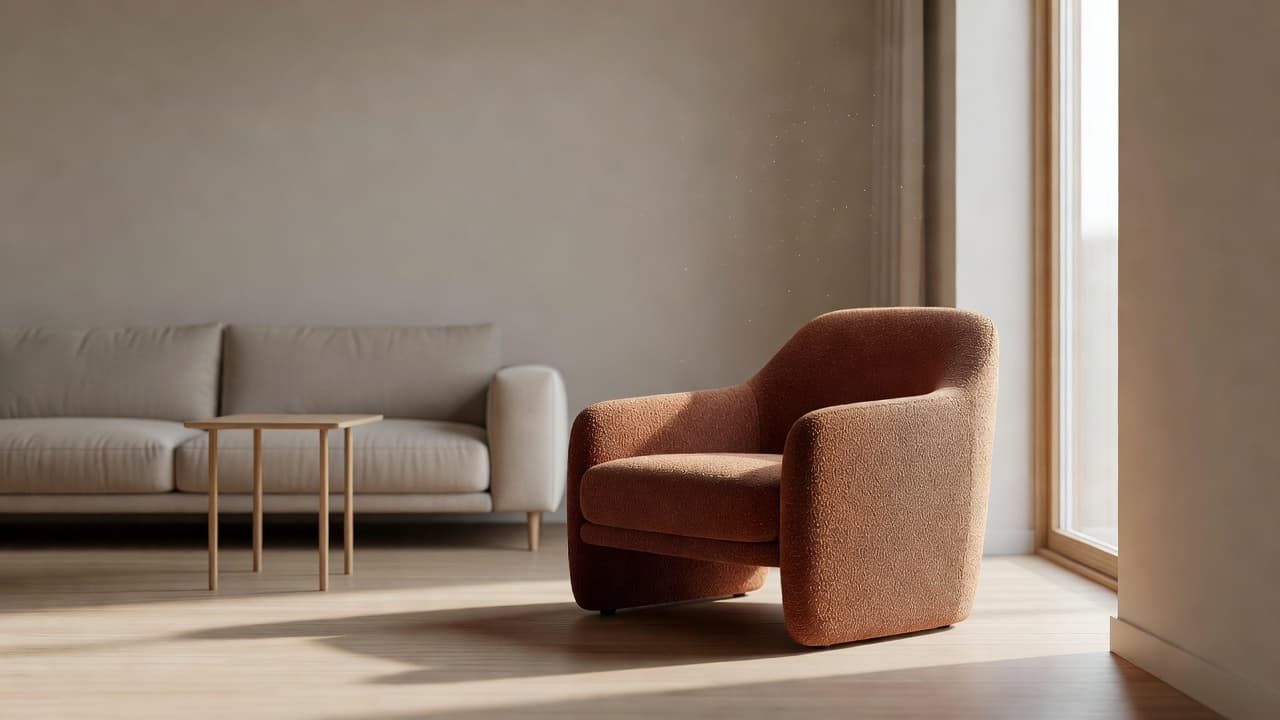
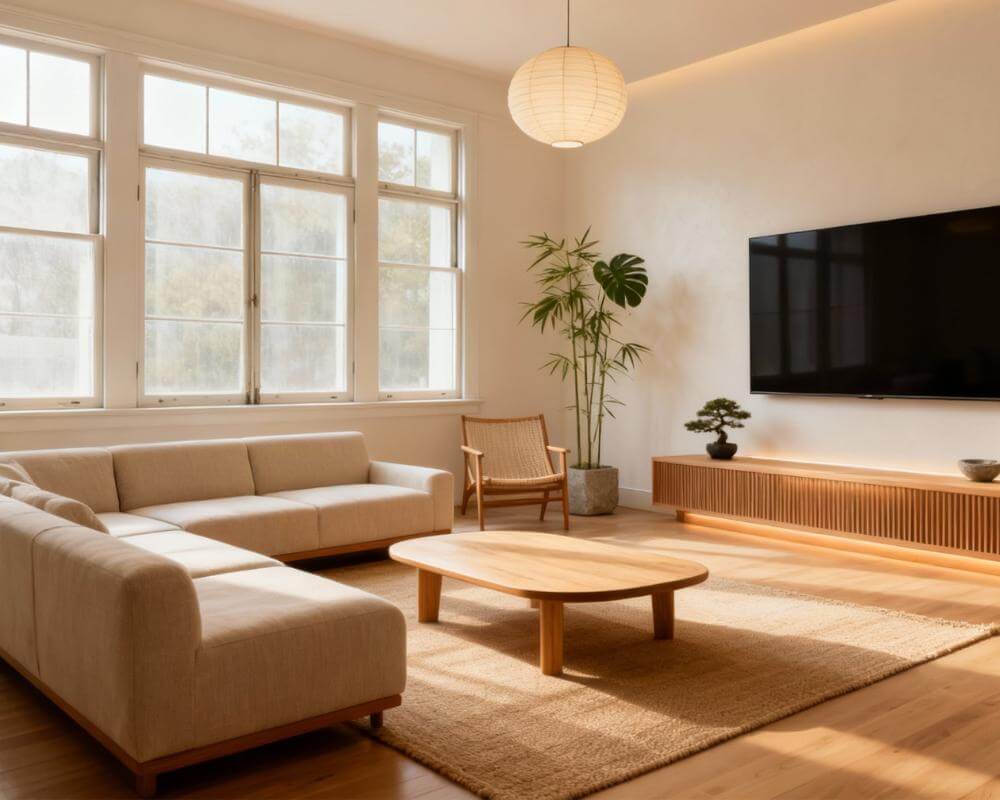
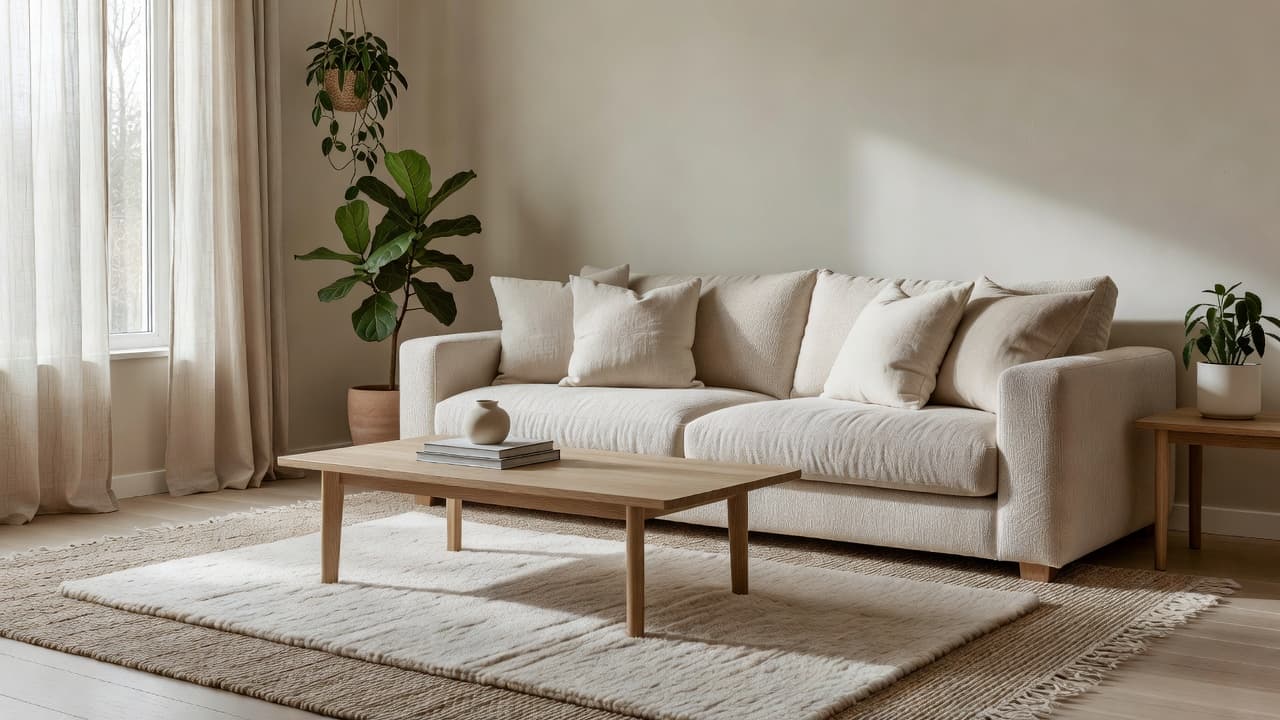
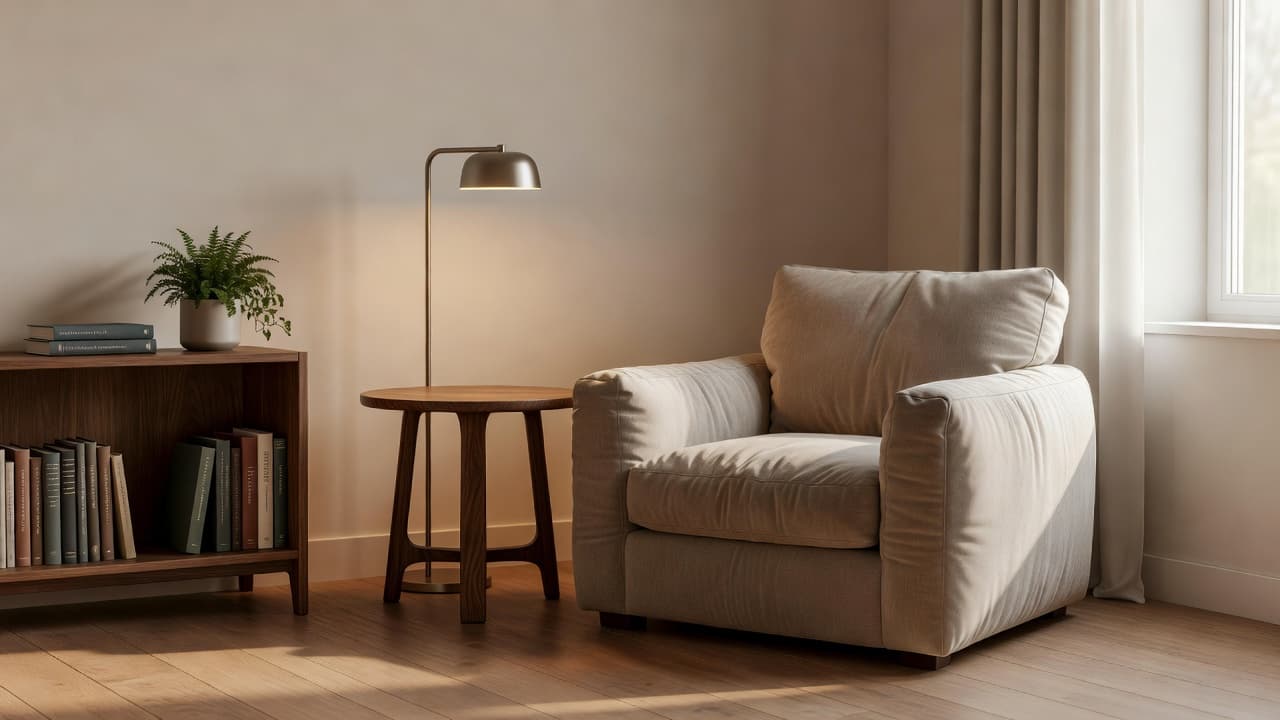
Most design tools ask you to redo the whole room if you don't like one piece of it. DecorAI is an AI interior design app that lets users transform photos of existing rooms into realistic redesign concepts, and its Inpainting editor is built for the opposite situation: everything in the photo is already right except one thing. You paint over that one area with an adjustable brush, describe only what should replace it, and DecorAI regenerates just that region — the sofa, the radiator, the single wall — while every other pixel in the photo stays exactly as it was.
This guide covers how the Inpainting editor actually works step by step, when it beats a full redesign or a tool like Style Transfer, and the real situations — a piece of furniture you never liked, an object you want gone, one wall that's the wrong color — where it's the fastest way to finish a design.
Key Takeaways
- Inpainting changes only the area you paint over with the brush — everything outside the mask is preserved exactly as it was in the original photo.
- It's built for small, targeted fixes: replace one piece of furniture, remove a single object, or repaint one wall, not full-room redesigns.
- Keep the mask tight. A large or loose mask starts to behave like a full regeneration and loses the precision that makes the tool useful.
- It pairs with, rather than replaces, DecorAI's other tools: Furniture Import tests a specific product, Style Transfer changes the whole look, Inpainting edits one detail.
- Try DecorAI free and mask the one thing you'd change in your own room.
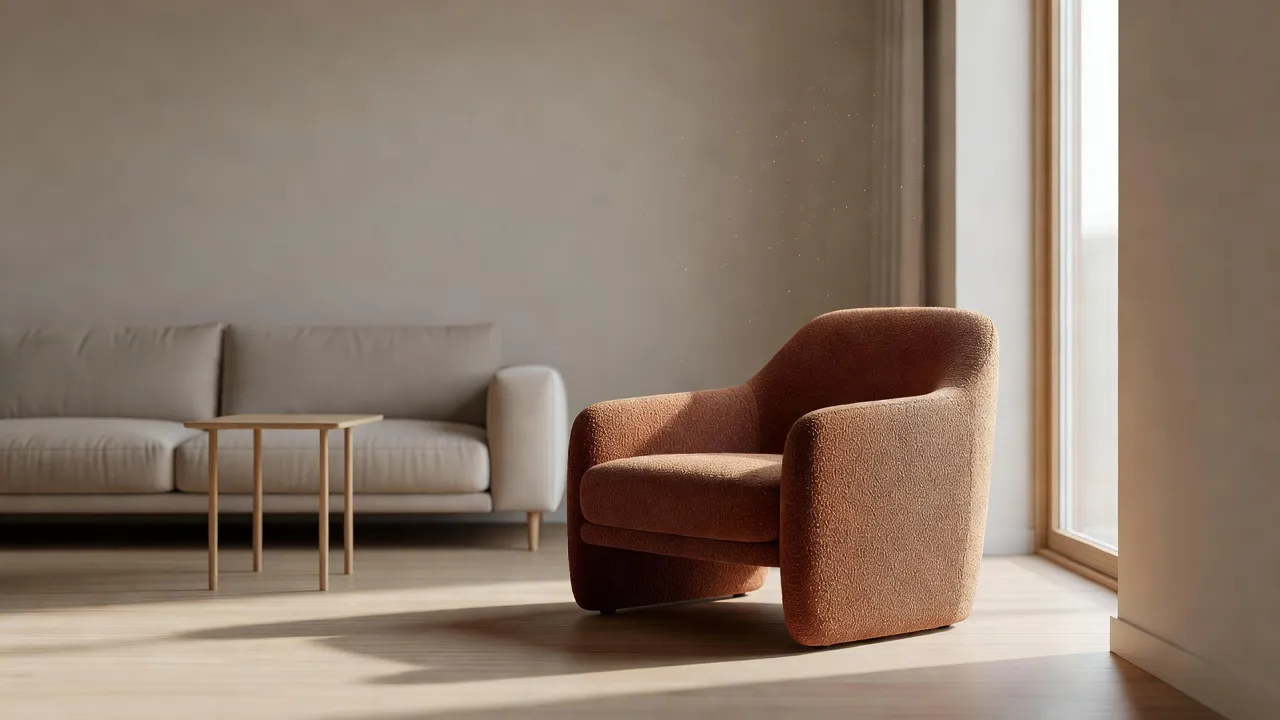
What Is AI Inpainting, and How Is It Different From a Full Redesign?
DecorAI's main AI Interior Designer works on the whole photo: pick a room type, a style, and a handful of design controls, and the AI regenerates the entire space to match. That's the right tool when you want a different look overall. Inpainting works on a single masked region instead. You paint over the exact area you want to change — with an adjustable brush, including the shadow an object casts — describe only what should appear there, and generate. Everything outside that mask is left untouched, because the AI is only being asked to solve for the painted area, not reinterpret the whole scene.
That distinction is what makes Inpainting useful for what the DecorAI team calls "the last 10% of a design": the one lamp you dislike, the radiator you want gone, the artwork that should really be a mirror. Regenerating the whole room to fix a single detail risks changing things you were already happy with — the lighting, the layout, a piece of furniture that turned out perfectly. Inpainting doesn't touch any of it.
How Do You Use the Inpainting Editor, Step by Step?
- Open a photo, or a design DecorAI has already generated, in the Inpainting editor.
- Paint over the area you want to change with the adjustable brush — including the object's shadow, not just the object itself.
- Describe only what should appear in that masked area, not the room as a whole: "a cream three-seat sofa," not "a nicer living room."
- Generate. The masked region is replaced; everything outside it stays exactly as it was.
Three controls keep the process forgiving: adjustable brush size for tight or broad masks, clear mask to start over, and undo for the last stroke. None of it is committed until you generate, so there's no cost to experimenting with the mask itself.
When Should You Use Inpainting Instead of Style Transfer or a Full Redesign?
DecorAI has several tools that can all change how a room looks, and they're built for different questions:
- The AI Interior Designer is for changing the whole room's style, layout mood, or several pieces at once — start here for a full redesign.
- Style Transfer is for when you want the entire room to take on the palette and materials of one reference image — a Pinterest photo, a fabric swatch, another interior — rather than editing a single spot.
- Furniture Import is for testing one specific product you're considering buying, placed into your room from its own product photo.
- Inpainting is for when everything else in the room is already right and only one thing — an object, a piece of furniture, a wall — needs to change.
They're built to be used together rather than as competing options: explore styles broadly with the Interior Designer first, then switch to Inpainting once you've picked a direction and just want to swap out the one element that isn't working.
What Can You Actually Fix With Inpainting? Real Examples
- Swap one piece of furniture — replace a sofa, chair, or table with something else while the rest of the room's layout and lighting stay identical.
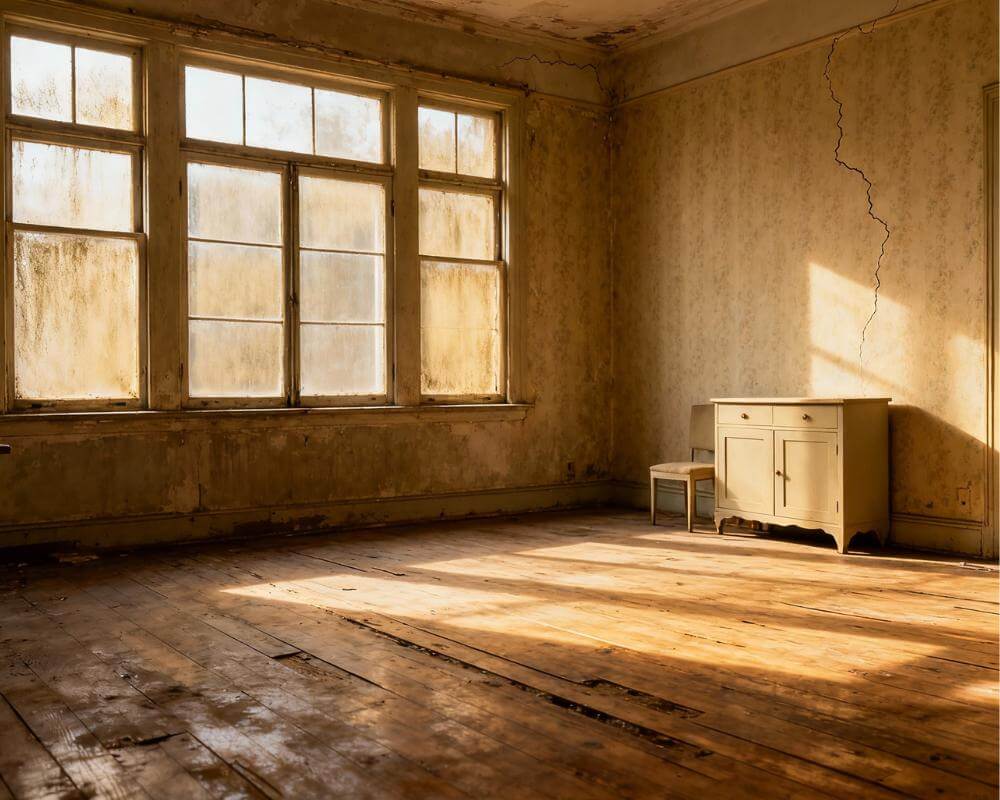
- Remove a single object — a radiator, a visible cable, a trash can, or a stray piece of clutter. The same underlying technology used in Empty the Room reconstructs the floor and wall behind it, but Inpainting applies it to one item instead of the whole space.
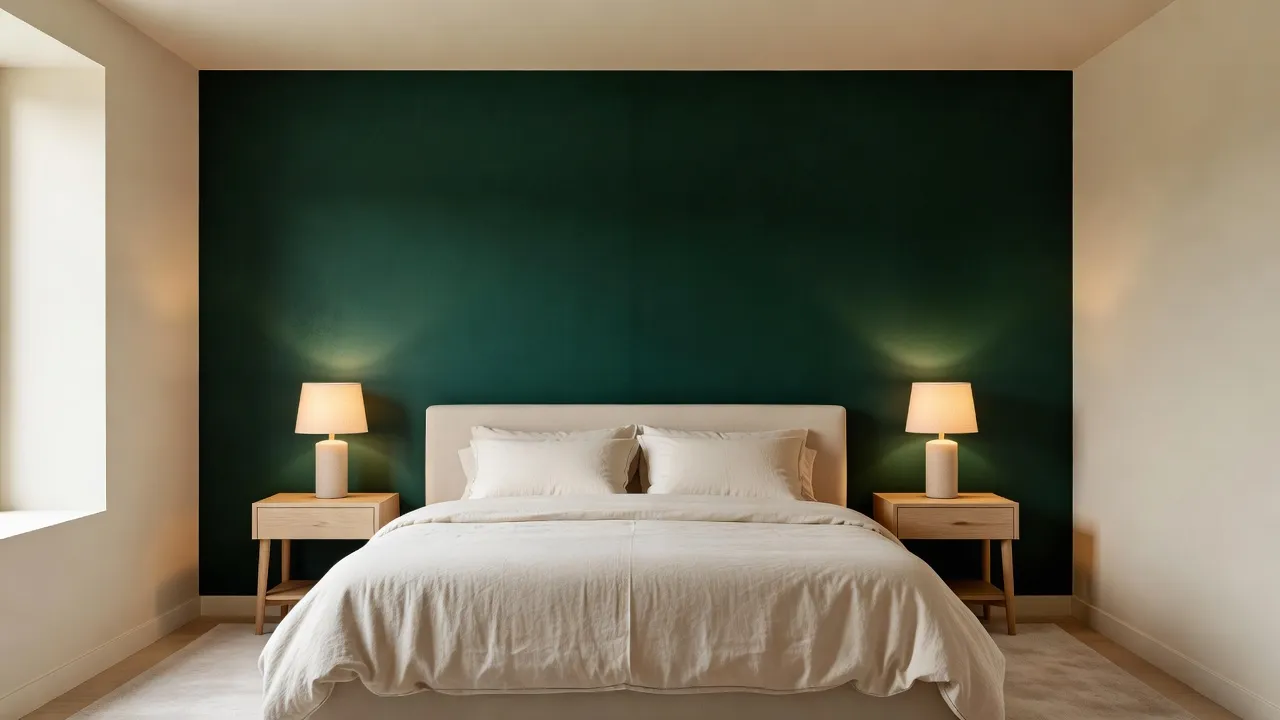
- Repaint or re-material one wall — test a single accent wall without regenerating the ceiling, floor, or the rest of the walls.
- Change one fixture — swap an artwork for a mirror, or a pendant light for a different style, without touching anything around it.
- Clean up a listing photo before it goes live — agents and stagers use Inpainting to show a client one alternative sofa or fixture rather than re-rendering an entire staged scheme, which matters when you're presenting options in a meeting and need a fast, targeted change. It works alongside Virtual Staging as a finishing step once a room is already furnished.
Fix the One Thing You'd Change — Free to Try
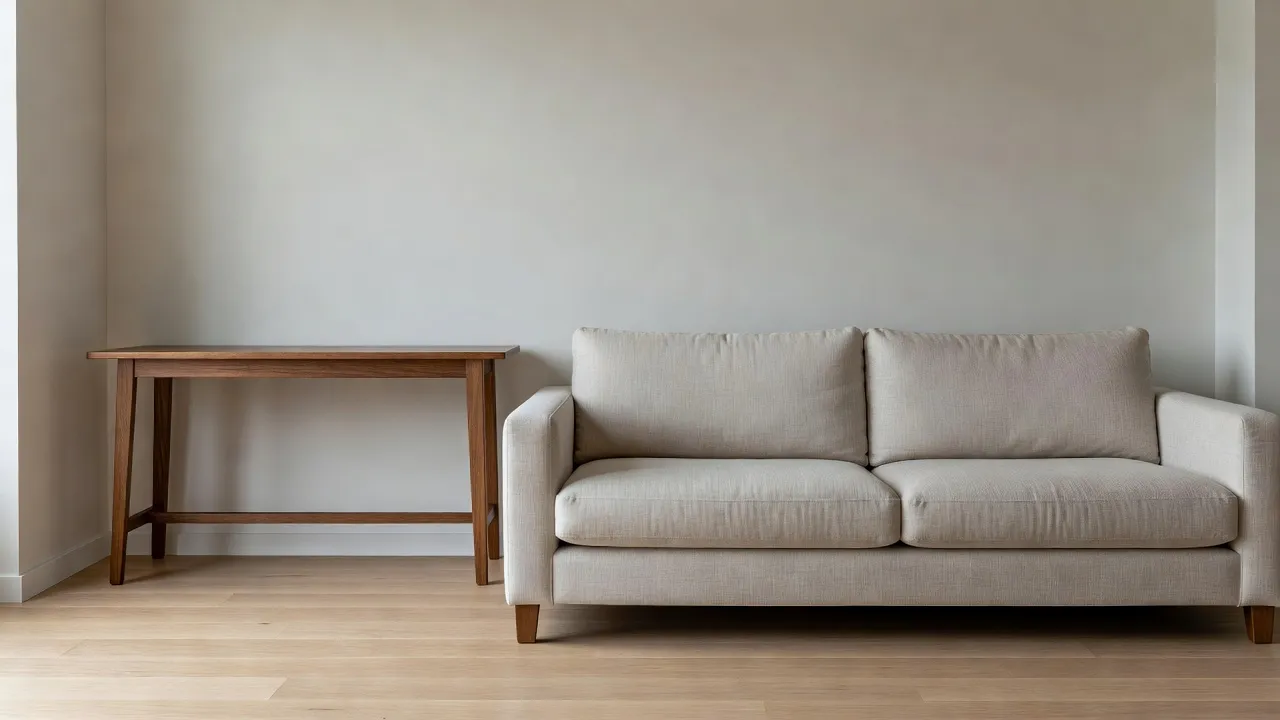
Upload a photo of your room, mask the one item you want gone or replaced, and see just that area change while the rest of the photo stays exactly as it was.


How Do You Get Clean Results With the Brush?
- Zoom in and paint slightly beyond the edges of the object, including its shadow — a mask that stops right at the object's outline can leave a faint edge behind.
- Keep the mask tight. Masking half the room turns Inpainting into something closer to a full redesign, which trades away the precision the tool is built for.
- Describe only what should appear in the masked area — "a cream three-seat sofa," not "a nicer living room" — since the AI is solving for that region specifically.
- Use undo and clear mask freely. The mask isn't committed until you generate, so there's no downside to redrawing it a few times.
The most common mistake is painting too loosely and expecting a precise swap — a wide mask gives the AI room to reinterpret furniture or wall sections you didn't actually want changed. A tight mask around just the object, plus a specific description, is what keeps the rest of the photo identical to the original.
Who Gets the Most Out of Inpainting?
- Anyone finishing a fuller redesign who explored styles broadly with the AI Interior Designer, picked a direction, and just wants to swap the one lamp or chair that isn't quite right — without regenerating everything else and risking a worse result elsewhere in the room.
- Renters and homeowners previewing a small change, like one accent wall or a single fixture, before deciding whether it's worth doing for real.
- Agents and stagers who need to show a client one alternative option on a listing photo quickly, without re-rendering an entire staged room.
- Anyone cleaning up a photo before sharing it — removing a stray object or piece of clutter that a full redesign would otherwise have to work around.
The full set of tools Inpainting sits alongside — Room Analysis, Design Reports, Empty the Room, Virtual Staging, Furniture Import, and Style Transfer — is listed in the DecorAI feature directory.
AI Inpainting FAQ
What does Inpainting actually change in my photo?
Only the area you paint over with the brush. DecorAI generates a replacement for that masked region based on your description, and every pixel outside the mask stays exactly as it was in the original photo.
Is Inpainting available on the free plan?
Yes — Inpainting is available on both the Free and Pro plans, the same as most of DecorAI's core design tools.
Can Inpainting remove an object, like a radiator or a cable?
Yes. Mask the object, describe what should be there instead (or leave it blank for the AI to reconstruct the floor and wall behind it), and generate. It's the same underlying approach as Empty the Room, applied to one object instead of an entire space.
What's the difference between Inpainting and Style Transfer?
Style Transfer regenerates the whole room to match the palette and materials of a reference image. Inpainting only changes the specific area you mask, leaving the rest of the room untouched. Use Style Transfer for an overall look, Inpainting for one detail.
Does Inpainting work well on a phone, or is it easier on a tablet?
It works on both, but a bigger screen makes precise masking easier — DecorAI runs the same Inpainting editor on iPad and Android tablets, and comparing versions or masking small details is noticeably more comfortable on the larger canvas.
Conclusion
Inpainting exists for the moment a redesign is 90% finished and only one thing is holding it back — a piece of furniture, an object in the frame, a single wall. Instead of regenerating the whole photo and hoping the rest comes out the same, you mask exactly what needs to change and leave everything else alone. Upload a photo to DecorAI to try it on your own room, explore the rest of the toolkit in the feature directory, or head back to the DecorAI homepage to get started.
Visualize Your Dream Home Instantly
Don't just read about it. Experience the power of AI interior design with DecorAI's free tool.
Start Designing for FreeWritten by
DecorAI Team
Editorial Team