How Real Estate Agents Use DecorAI to Stage Listing Photos
A step-by-step workflow for estate agents, home stagers and sellers: clear a cluttered room in a listing photo with Empty the Room, furnish it with Virtual Staging in a buyer-friendly style, keep the framing honest, and label every staged image.
A real estate listing photo workflow that works on a cluttered, half-empty or fully vacant property can save an agent a surprising amount of time before a listing goes live. DecorAI is an AI interior design app that lets users transform photos of existing rooms into realistic redesign concepts, and two of its tools, Empty the Room and Virtual Staging, were built for exactly this job: clear a room in a photo, then furnish it in a style that suits the likely buyer.
This guide walks through that workflow step by step for estate agents, home stagers and sellers. It covers which photos to start from, how to choose a style, how to keep the framing honest, and the disclosure rule that matters more than any feature: a digitally staged image must be labelled as digitally staged.
Key Takeaways
- The workflow is two steps: Empty the Room clears furniture and clutter while keeping the floor, walls, windows and architecture, then Virtual Staging furnishes the empty result in a style you choose.
- Start from the professional listing photos you already have the right to use. They are level, wide and well lit, which is what the AI handles best.
- Pick a broadly appealing style such as Modern, Scandinavian or Coastal, rather than a bold one that narrows the buyer pool.
- Keep the framing identical to the real photo so buyers can match every image to the room they will walk into.
- Always disclose staging. Rules vary by market and portal, so check what applies where you list before publishing.
- Try DecorAI free on one listing photo to see the result before you change your process.
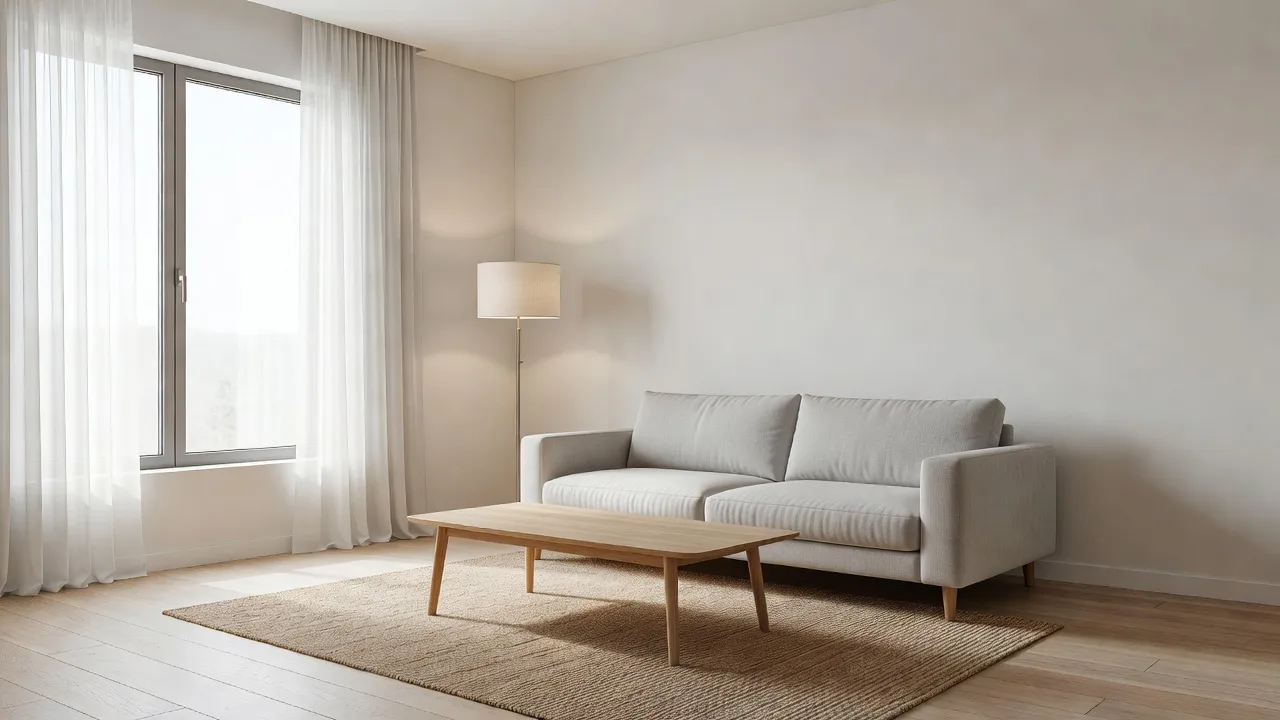
Why Do Agents Stage Listing Photos at All?
Most buyers start online, and the first thing they judge is a grid of thumbnails. An empty room can look smaller and colder than it feels in person, and a cluttered room hides the space under the clutter. Staging, physical or digital, gives a buyer a quick answer to the question "how would I live here?"
Physical staging means hiring furniture, a stager and a delivery crew. Virtual staging produces a furnished concept from a photo, so it suits properties that are vacant, awkward to access or listed at short notice. Our broader guide to AI home staging compares the approaches; this article focuses on the practical steps inside DecorAI.
What Does Empty the Room Do for a Listing?
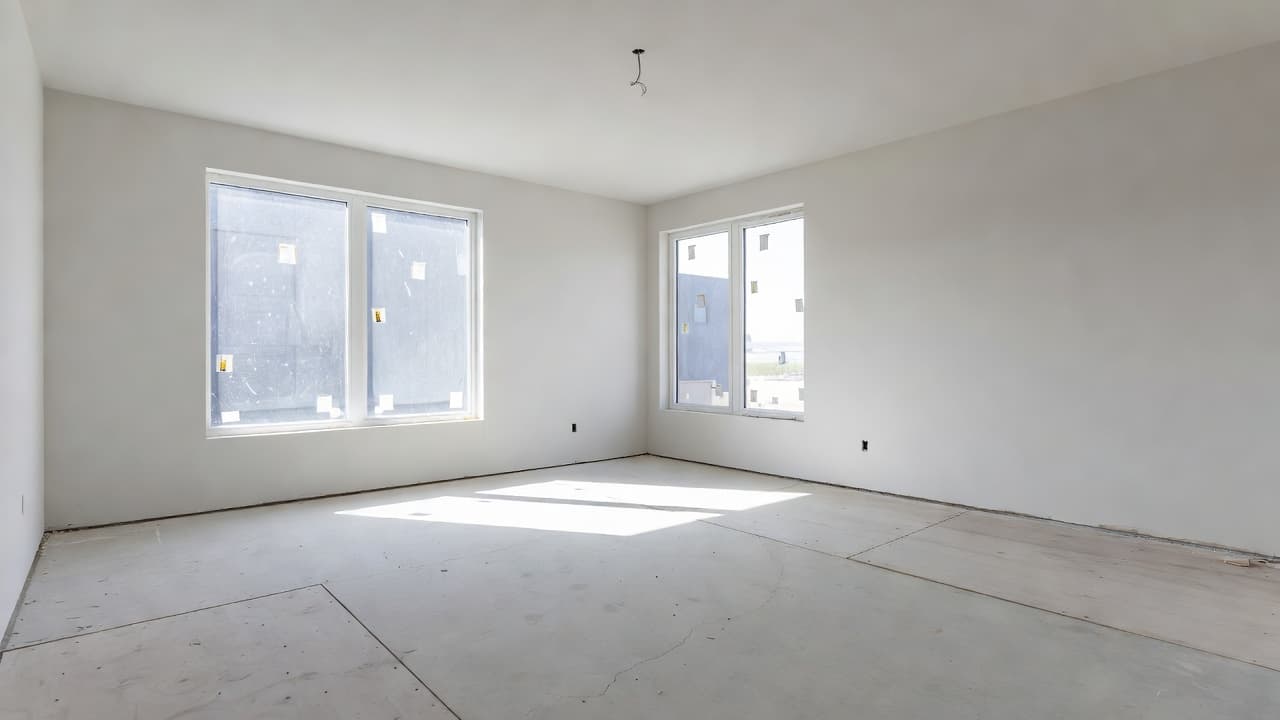
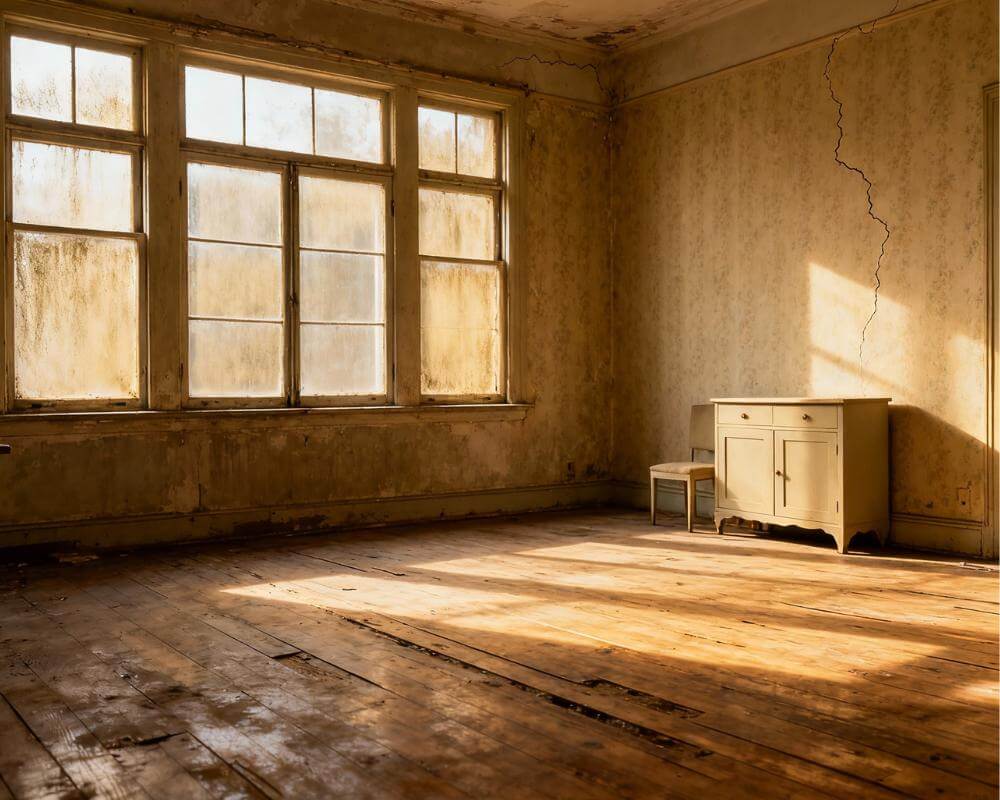
Empty the Room removes furniture and clutter from a photo of a furnished room while keeping the floor, walls, windows and architecture. For an agent, that is useful in two situations: a seller who is still living in the property and has a lot of furniture, and a previous tenant's leftover pieces that do not match the target buyer.
It is also the cleaner first step before staging. Doing it in two steps usually beats a single "replace everything" generation, because the AI is not fighting the old furniture while inventing the new. Our guide to removing furniture from a photo goes deeper on what the tool can and cannot reconstruct.
One limit to keep in mind: what sits behind a large sofa or a full bookcase is unknown to the AI, so it will reconstruct that area plausibly rather than accurately. Expect the wall behind big objects to be an approximation, and check it against the real room.
How Does Virtual Staging Furnish an Empty Room?
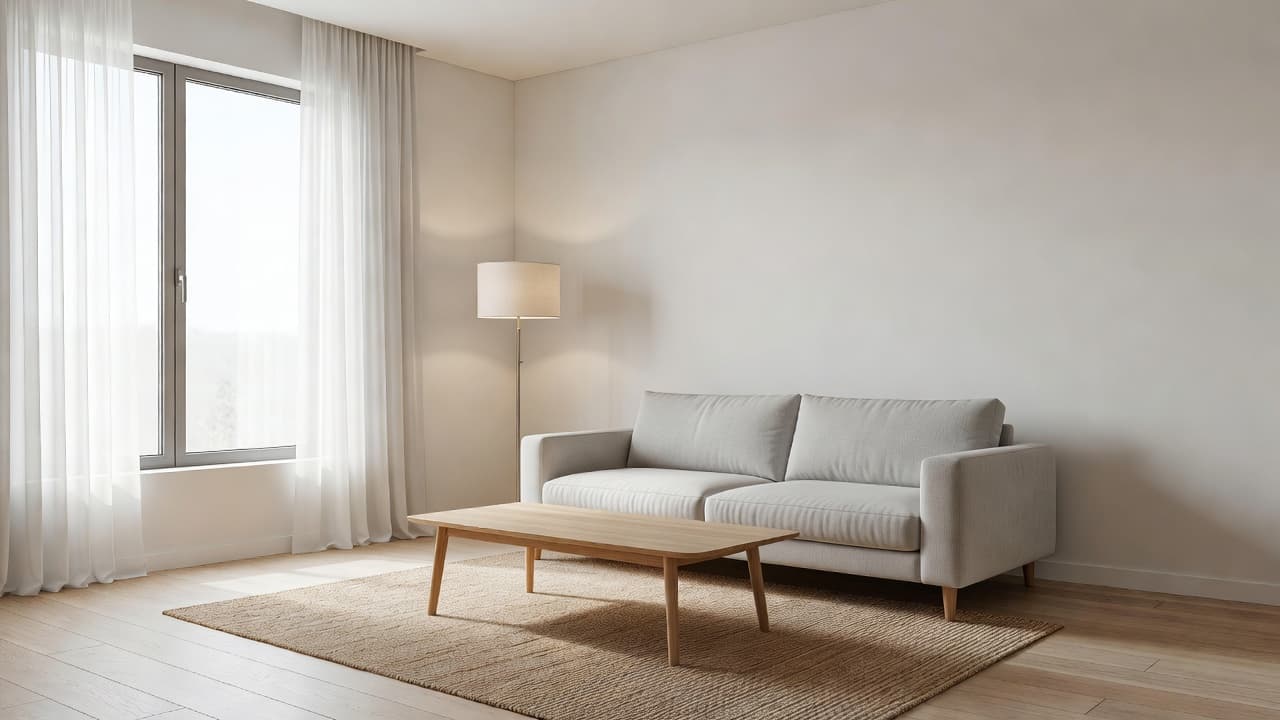
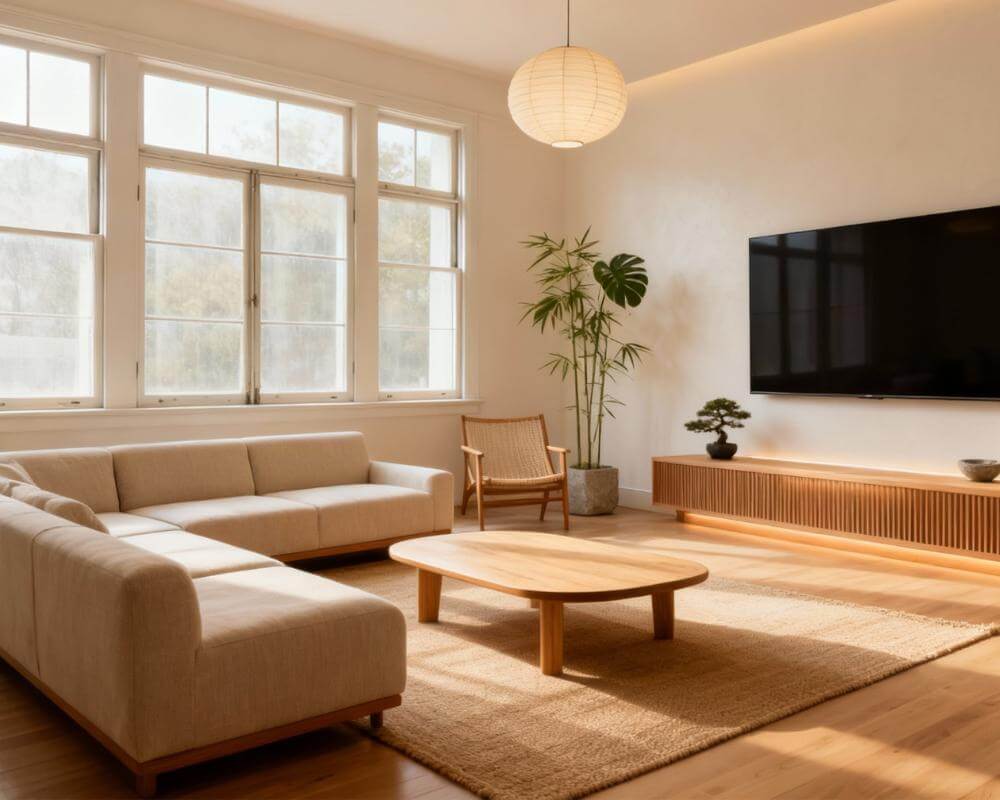
Virtual Staging furnishes an empty or under-furnished room from a photo. You choose the room type (living room, bedroom, kitchen, dining room, office, kids room, bathroom or a custom type) and a style such as Modern, Scandinavian, Minimalist, Industrial, Bohemian, Mid-Century, Coastal or Japandi. DecorAI then adds a coherent furniture and decor concept, and you can add free-text instructions if you want something specific, such as a dining table rather than a desk.
For a deeper look at the feature itself, the AI Virtual Staging page shows the settings and examples.
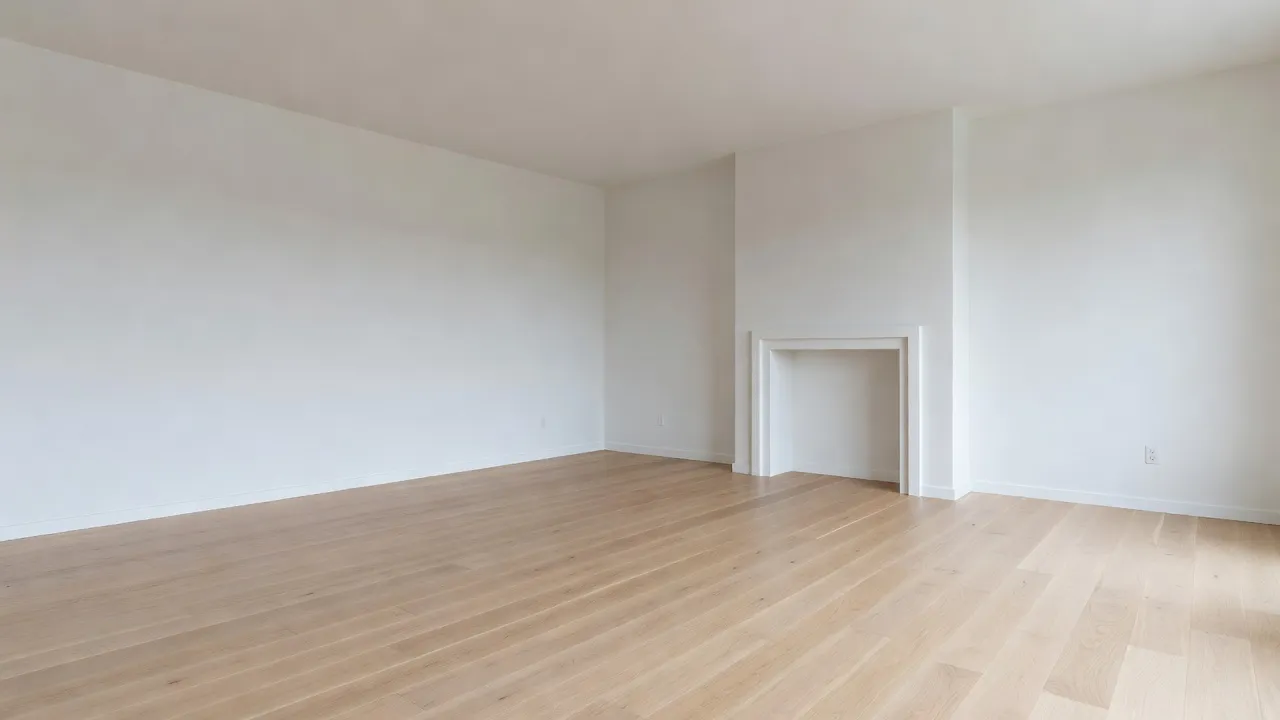
What Is the Step-by-Step Listing Workflow?
- Choose the right photo. Use the professional listing photo where you can: wide, level and well lit. If you are shooting new images, our guide on how to photograph a room for AI design covers angle, light and framing.
- Confirm you can use it. Only upload images you have the right to use and modify: your own photos, your own listings, or images you have permission to edit. Photographs are usually owned by the photographer or the agency that commissioned them.
- Empty the Room if it is furnished. Clear the space so the floor, windows and layout are visible.
- Run Virtual Staging. Pick the room type and a broadly appealing style, and generate a concept. DecorAI generates designs in a matter of seconds, with typical times under 10 seconds, though peak periods may take longer.
- Compare two or three styles. A quick comparison shows which style flatters the proportions and light of that particular room.
- Check the result against reality. Make sure doors, windows, built-ins and room proportions still look like the real space.
- Label the image. Add a clear note that the furniture was added digitally before it goes on a portal, brochure or social post.
Stage a Listing Photo in Seconds, Free to Start
Upload one listing photo, clear the room, then preview it furnished in the style that suits your buyer.


Which Style Should You Choose for Buyers?
The goal of a listing image is not to show your taste; it is to let the widest range of buyers imagine themselves in the room. That favours calm, familiar styles.
- Modern: clean lines and neutral colours, a safe default for apartments and newer builds.
- Scandinavian: light woods and soft textiles make small or north-facing rooms feel brighter.
- Coastal: airy and relaxed, well suited to homes with water views or a holiday-let feel.
- Minimalist or Japandi: useful when the main selling point is calm, uncluttered space.
Bold choices such as Bohemian or Industrial can work for a specific buyer profile, but they narrow the audience. If you are unsure, generate a neutral version first and a second option only if the property has a clear niche.
Do You Have to Disclose Virtual Staging?
You should always label a digitally staged image as digitally staged, and in many markets and on many portals you are required to. Requirements differ by country, region and listing platform, so check the rules that apply where you publish. Disclosure protects your reputation as much as it satisfies a rule: a buyer who walks into a room that does not match the photos loses trust quickly.
Practical habits that help: put a short caption such as "Virtually staged" on each image, and where possible include the empty-room photo alongside it so buyers can see the real space.
What Else Can an Agent Do With a Design Report?
Staging is only one use. DecorAI Design Reports, available on Pro, turn a finished design into a written plan with a colour palette, recommendations and a planning-grade cost range, exported as a PDF. For an agent, that is handy when advising a seller on which small updates are worth making before listing. Our guide to Room Analysis and Design Reports explains what each report contains.
What Mistakes Should Agents Avoid?
- Changing the room itself. Do not alter windows, ceilings, floors or views. Stage furniture, not the property.
- Skipping the empty-room step. Staging on top of old furniture gives muddier results.
- Using photos you do not have rights to. Permission comes before editing.
- Over-styling. A few well-chosen pieces beat a crowded room, and they photograph more honestly.
- Forgetting the label. Every staged image needs its disclosure.
Real Estate Staging FAQ
Can I use the listing photos I already have?
Yes, as long as you have the right to use and edit them. Professional listing photos are usually the best starting point because they are level, wide and well lit.
Does DecorAI replace a physical stager?
Not necessarily. Virtual staging is a fast way to show a vacant or awkward property in a furnished light, while physical staging also helps viewings in person. Many agents use whichever fits the property and timeline.
How many rooms can I try for free?
DecorAI offers three free generations per day without requiring an account or credit card. They are unlocked by watching a short rewarded video advertisement.
Does it work on the phone?
Yes. DecorAI is available as a Web App and on iOS and Android, so you can stage a photo from the viewing itself.
Will the staged furniture match what buyers see in person?
No, and it is not meant to. Virtual staging shows a concept of how the room could look, which is why the image must be labelled and the real room shown alongside it.
Conclusion
A good listing photo workflow is short: start from a strong photo, empty the room, stage it in a broadly appealing style, check it against reality and label it clearly. Done that way, DecorAI helps buyers picture the space without misleading them about it. Upload a listing photo to DecorAI to try the workflow, browse the styles gallery for direction, or head back to the DecorAI homepage to get started.
Visualize Your Dream Home Instantly
Don't just read about it. Experience the power of AI interior design with DecorAI's free tool.
Start Designing for FreeWritten by
DecorAI Team
Editorial Team