Why Does My AI Room Design Look Wrong? How to Fix Warped, Off-Target or Failed Results in DecorAI
A practical troubleshooting guide for DecorAI: why an AI room design looks warped or ignores your request, how to fix it with a better photo, fewer controls and a concrete instruction, and what to do when a generation is slow, fails or is blocked.
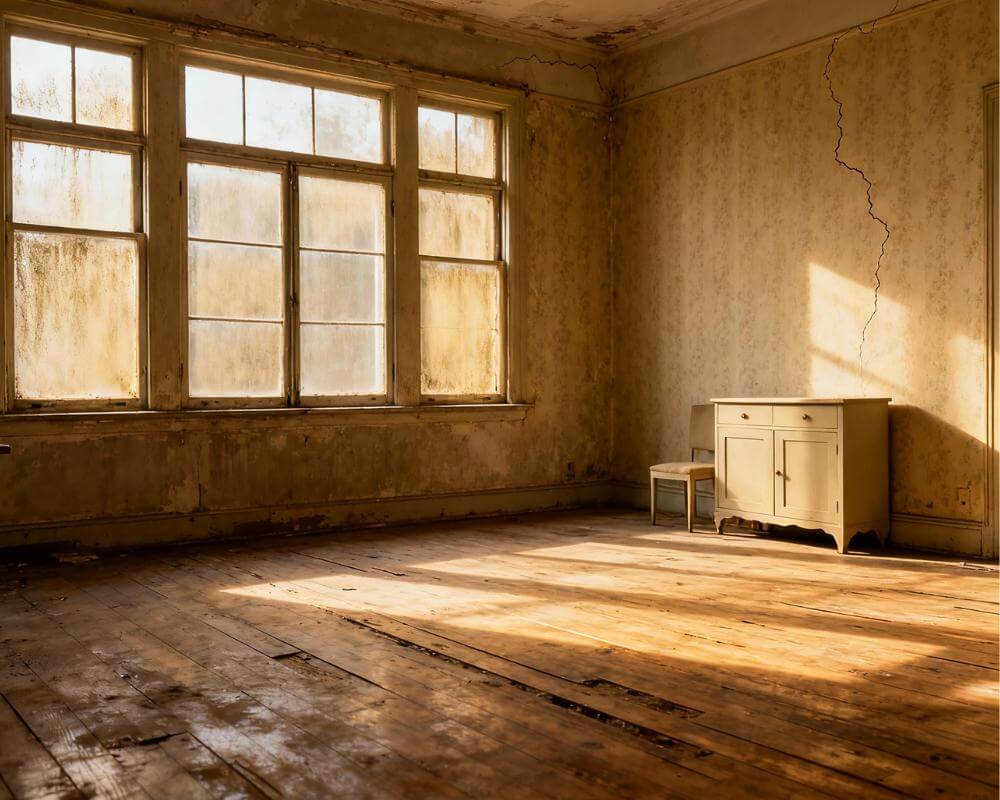
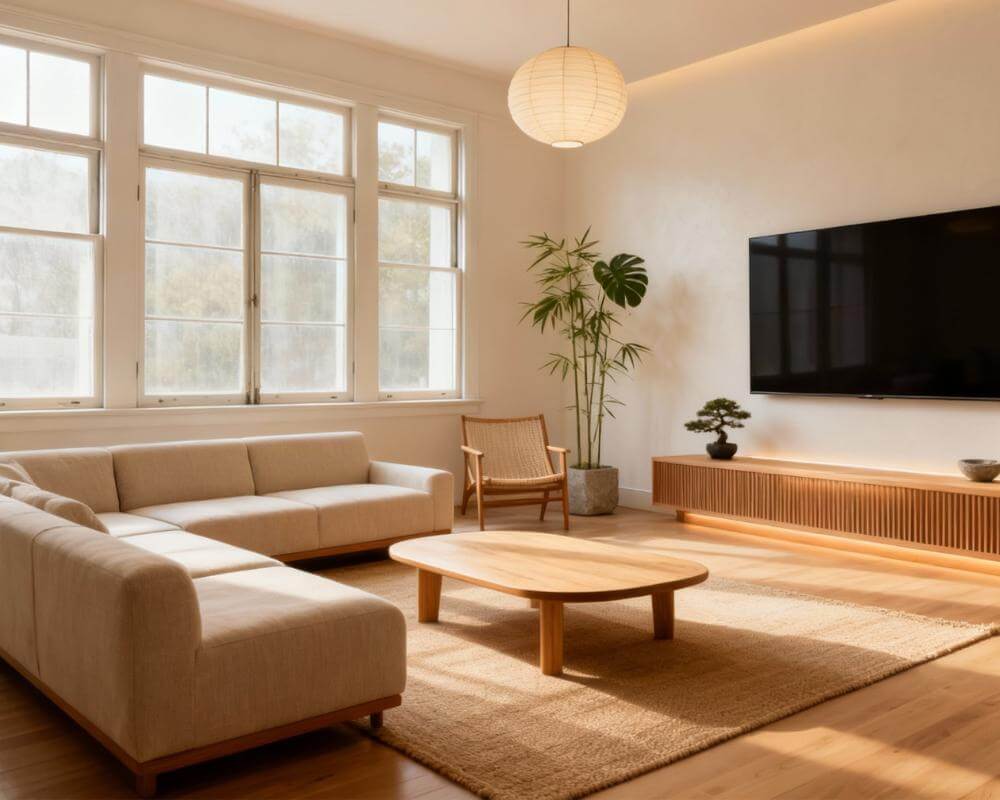
You upload a photo, press generate and the result is not what you hoped for. The walls bend, the window has moved, or the room is a polished version of something you never asked for. This is common with any AI image tool, and in DecorAI it almost always has a quick fix. DecorAI is an AI interior design app that lets users transform photos of existing rooms into realistic redesign concepts, and the quality of a concept depends heavily on what goes in: the photo, the settings and the instruction.
This guide walks through the most common problems in the order they usually happen: a warped or distorted result, a design that ignores your request, a single detail that is wrong, and a generation that is slow, fails or is blocked.
Key Takeaways
- Distortion usually starts with the photo. An ultra-wide lens, a tilted camera, a dark or blurry shot or a hidden floor line are the usual causes. Retake the photo before you change any setting.
- Change one thing at a time. Two or three design controls and one concrete sentence beat ten controls and a paragraph.
- Keep Exact Photo Angle and Keep Room Details hold the camera position and the architecture steady when you want a result that stays recognisable.
- Fix a single detail with Inpainting instead of regenerating the whole image.
- A failed generation does not use one of your three free daily designs. DecorAI offers three free generations per day without requiring an account or credit card.
- Try DecorAI with a fresh photo and the checklist below.
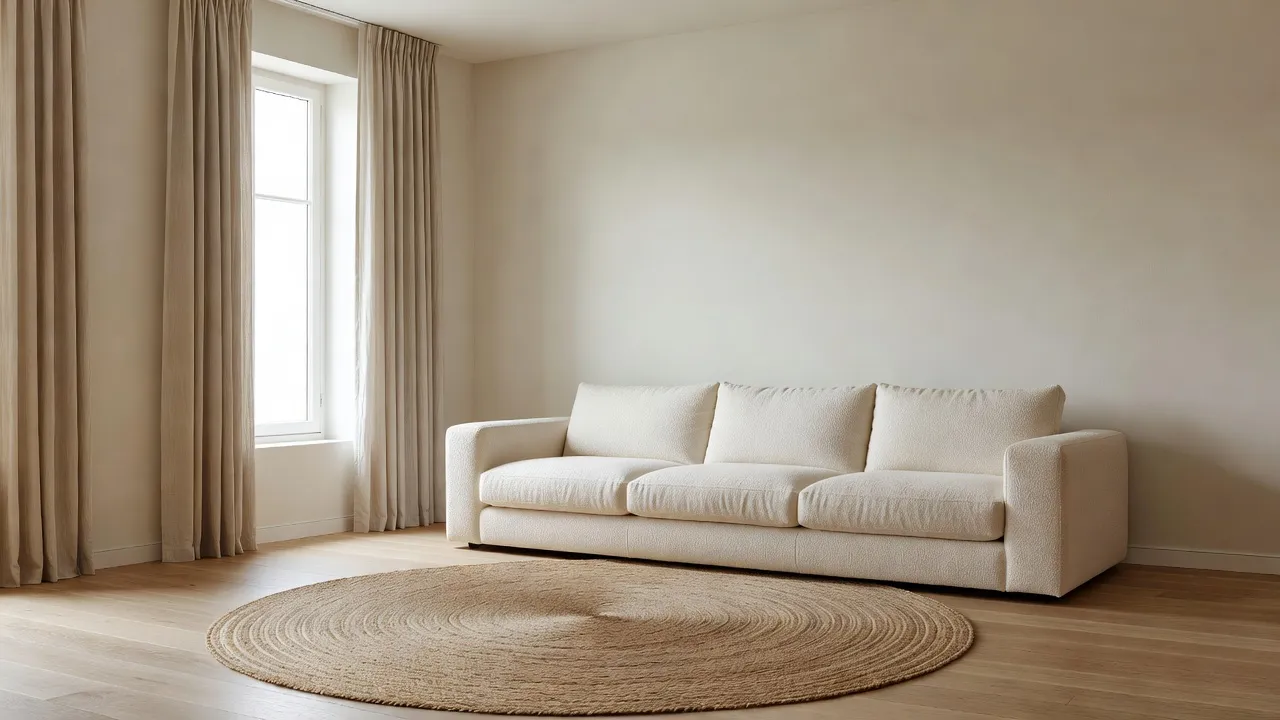
Why Does an AI Room Design Look Wrong?
An AI design is a fresh interpretation of your photo, not a measured render. The model reads the room's shape, light and objects from a single image, then redraws it in the style and with the changes you chose. When the input is clear and the request is focused, the result tends to stay close to the real room. When the input is confusing or the request pulls in several directions, the model has to guess.
That gives three families of problem, and each has its own fix:
- The photo is the problem. Bent walls, a shifted window or an odd perspective.
- The settings or the instruction are the problem. The design is polished but does not match what you asked for.
- The service is the problem. The generation is slow, fails or is blocked.
Start with the first, because it is the most common and the cheapest to fix.
How Do I Fix a Warped or Distorted Result?
Distorted results almost always come from the input photo. Check these causes in order:
- An ultra-wide lens. The 0.5x camera on a phone bends walls at the edges. Shoot at 1x.
- A tilted camera. Pointing the phone up or down makes vertical lines lean. Hold it level at about chest height.
- No floor line. If only a single wall is visible, the model has little to anchor the perspective. Step back and include where the wall meets the floor.
- A dark or blurry photo. Turn the lights on, hold still and check focus before you shoot.
- A very cluttered room. Tidy up, or run Empty the Room first so the model sees clear walls and floor.
Our full guide to photographing your room for AI design covers angle, framing and lighting in more detail. When you regenerate from the new photo, switch on Keep Exact Photo Angle and Keep Room Details so the camera position and the architecture stay put.
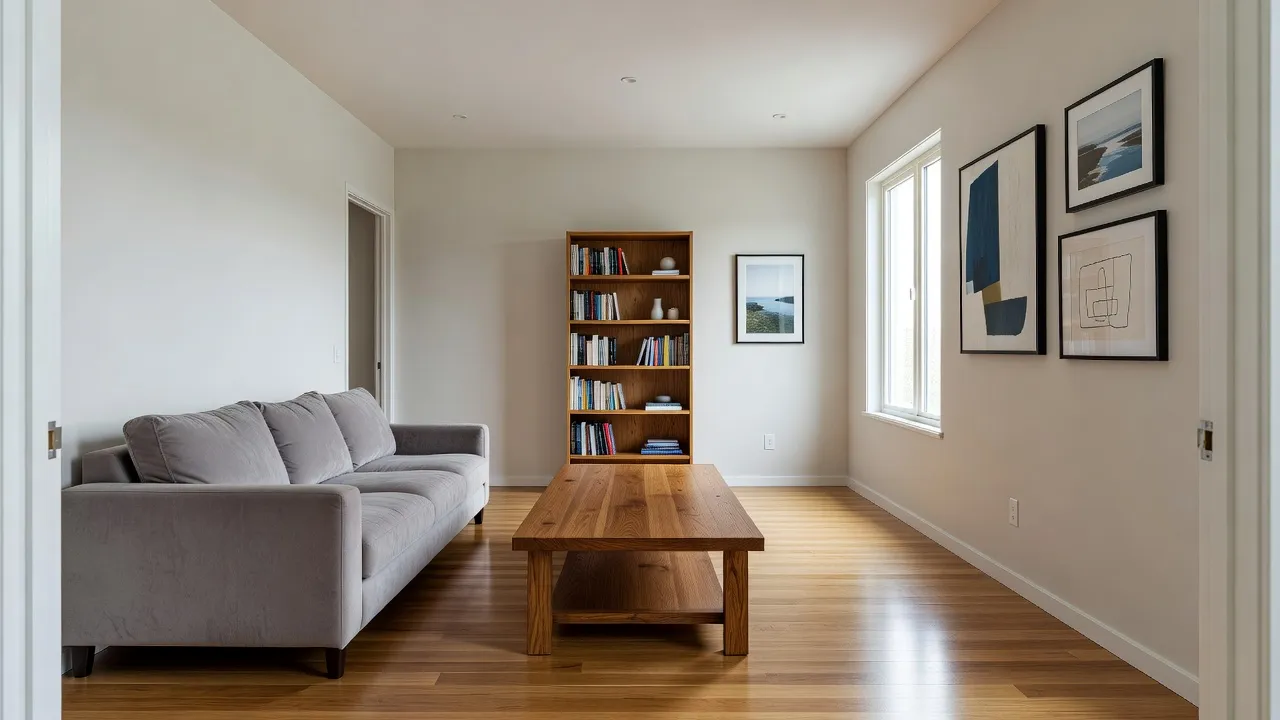
What if the Design Is Not What I Asked For?
If the room looks fine but ignores your request, the cause is usually a conflict inside the request itself. DecorAI is trying to satisfy every control and your sentence at once, and it averages them. Common conflicts include:
- Too many ideas for one style. A minimalist style plus a request for a gallery wall, plants, a patterned rug and shelving pulls in two directions. Pick one.
- Preserve and restructure together. Keep Room Details says hold the architecture. Open Floor Plan says change it. Use one or the other.
- Ten controls at once. DecorAI offers 60+ interior design styles, 40+ colour schemes and 30+ additional design options in five categories, with multi-select available. That is a lot of freedom, and using all of it at once tends to produce something bland. Two or three controls is a good start.
- A very long instruction. The key request gets lost in the middle. One short sentence works better.
Our guide to how DecorAI design controls work explains each group of controls, and the AI interior design prompts guide has wording that works.
How Do I Write an Instruction That Gets Followed?
Write one short, concrete sentence about what you want changed and what must stay. Name materials, colours and objects, and skip vague adjectives such as "nice" or "better". You can write in your own language.
- Weak: "Make it look more modern and cosy."
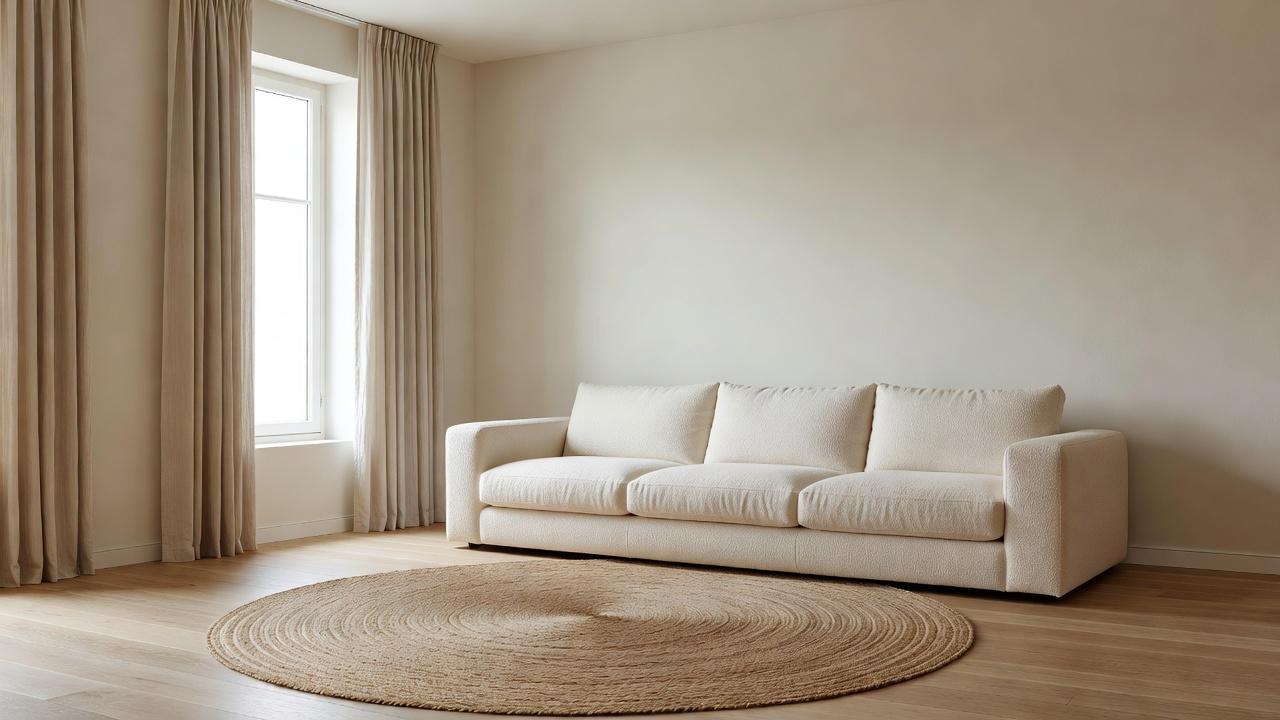
- Better: "Keep the layout, replace the grey sofa with a cream bouclé sectional and add a large round jute rug."
- Weak: "Redo the kitchen."
- Better: "Same kitchen, matte dark green cabinets, brass handles and a white marble worktop."
Each good example says what to keep and what to change. Also remember that every generation is a fresh interpretation, so pressing Regenerate with identical settings is a legitimate fix. The second attempt is often the one you wanted.
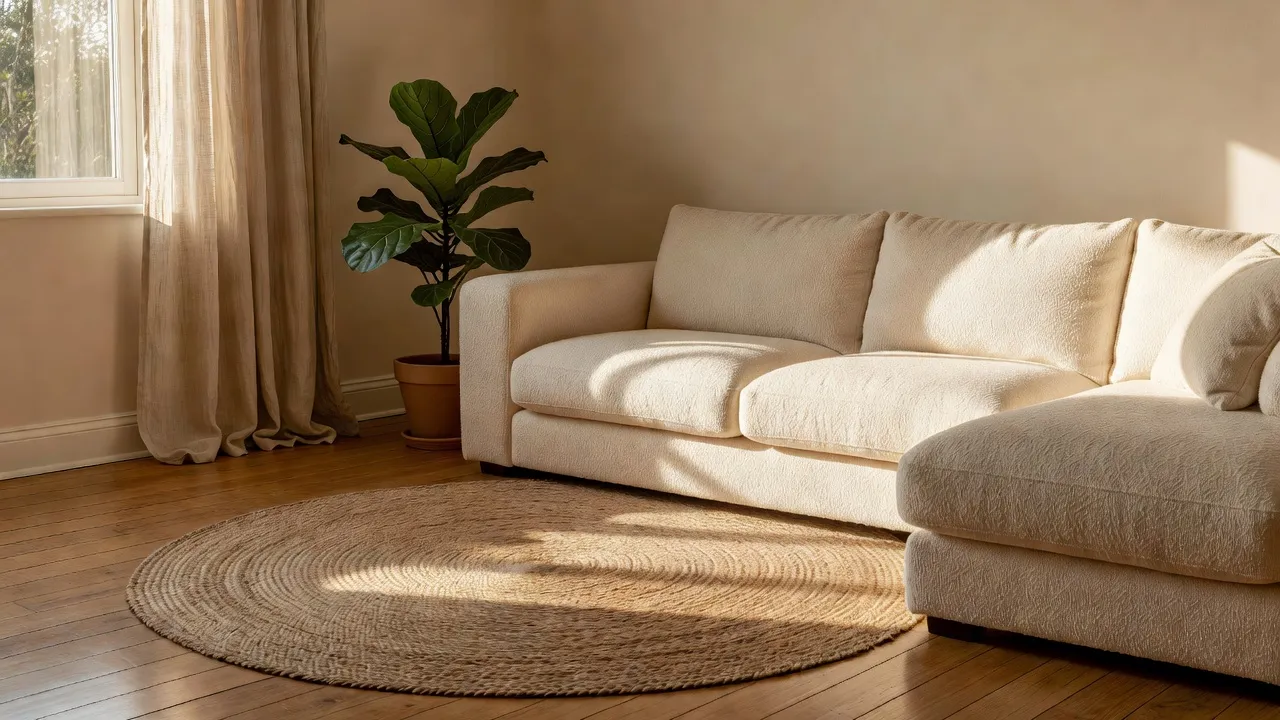
Try Your Room Again With a Cleaner Photo
Retake the photo from a doorway, choose two or three controls and write one concrete sentence. Designs usually take under 10 seconds, so you can compare versions quickly.


Should I Keep the Room Details or Let the AI Transform Everything?
Many "wrong" results are really a mismatch between goal and setup. Choose the setup that fits what you are trying to do:
- New paint, textiles and decor only: Keep Room Details and Keep Exact Photo Angle, with no layout controls.
- New furniture in the same room: Keep Exact Photo Angle plus Replace Furniture.
- A full renovation concept: no keep-controls, and add Open Floor Plan or Space Maximization.
- Several directions for a client: the same photo with three different styles and no keep-controls.
A useful habit is to run one faithful version and one ambitious version of the same room. The faithful one shows what you can do this month, and the ambitious one shows what the space could become. If the before-and-after view shows that a window has moved or the room has changed shape, regenerate with Keep Exact Photo Angle switched on.
How Do I Fix One Wrong Detail Without Starting Over?
If one element is off but the rest is good, regenerating the whole image can lose what you liked. Use the Inpainting editor instead: paint over the wrong object, describe what should be there and leave everything else as it is. This works well for a lamp that looks odd, a chair that came out strangely or a plant you do not want. Our Inpainting editor guide shows the steps. For a larger problem with the whole layout, go back to the photo and the settings instead.
What if a Generation Is Slow, Fails or Is Blocked?
These are service-side problems, and they are usually temporary.
- Slow. Most DecorAI designs finish in under 10 seconds, but during peak demand a generation can take longer, and a slow connection adds upload time. Wait a full minute, keep the app open and switch to Wi-Fi if you can. If nothing happens after a couple of minutes, close and reopen the app. Finished designs appear in History.
- Failed. Try once more. Most failures are transient, and DecorAI reroutes to another AI provider on the next attempt. If it keeps failing, check your connection, update the app and try a smaller photo. A failed generation does not consume one of your three daily free designs.
- Blocked. DecorAI runs automated safety checks on the photo, the instruction and the result. A block usually means the photo shows a person rather than a space, the image is not a room, or the instruction asked for something outside what DecorAI generates. Retake the photo of the space itself and describe the room rather than people.
- Upload problems. Switch to Wi-Fi, crop or resize the photo and check that the app has permission to your photo library.
If a design seems to have vanished, check that you are signed in to the same account. Our guide to DecorAI projects and history explains where designs are kept.
How Accurate Should I Expect an AI Design to Be?
Some "wrong" results are really a matter of expectations. An AI design is close on style, palette, light and general feel. It is less reliable on exact products, real dimensions and anything hidden from the camera, so the area behind a large object is reconstructed plausibly rather than accurately. Use the image to decide on a direction, and use a tape measure and the retailer's dimensions to decide on a purchase. Our list of AI interior design mistakes to avoid covers more of these habits.
A Five-Step Checklist Before You Regenerate
- Retake the photo at 1x, level, with the lights on and the floor line visible.
- Choose one style and two or three controls.
- Write one concrete sentence that names what to keep and what to change.
- Decide whether to turn Keep Exact Photo Angle and Keep Room Details on.
- If one detail is wrong, paint over it with Inpainting instead of starting again.
For a tour of everything the app can do, see the full DecorAI feature directory.
AI Room Design Troubleshooting FAQ
Why does my AI room design look distorted?
The most common cause is the input photo: an ultra-wide lens, a tilted camera, a dark or blurry image, or a view with no floor line. Retake the photo at 1x, level and well lit, then regenerate with Keep Exact Photo Angle and Keep Room Details enabled.
Why does the AI ignore my instructions?
The instruction may conflict with the style or the controls you selected, or it may be too long or vague. Use two or three controls, write one concrete sentence naming materials and colours, and change one thing at a time.
Can I fix just one part of a generated image?
Yes. The Inpainting editor lets you paint over one area, describe the change and keep the rest of the image as it is.
Does a failed generation use up my free designs?
No. A failed generation does not consume one of your three daily free designs. DecorAI offers three free generations per day without requiring an account or credit card, unlocked by watching a short rewarded video advertisement.
Is pressing Regenerate with the same settings worth trying?
Yes. Every generation is a fresh interpretation, so the same settings can give a noticeably different result. If it keeps missing, change the photo or cut the number of controls.
Conclusion
When an AI room design looks wrong, work through the causes in order: a level, well-lit photo with the floor line visible, a small set of controls, one concrete sentence and, for a single bad detail, a targeted Inpainting fix. Most problems disappear with a better input rather than a different tool. Upload a fresh photo to DecorAI, run a faithful and an ambitious version side by side and keep the one that fits your room.
Visualize Your Dream Home Instantly
Don't just read about it. Experience the power of AI interior design with DecorAI's free tool.
Start Designing for FreeWritten by
DecorAI Team
Editorial Team