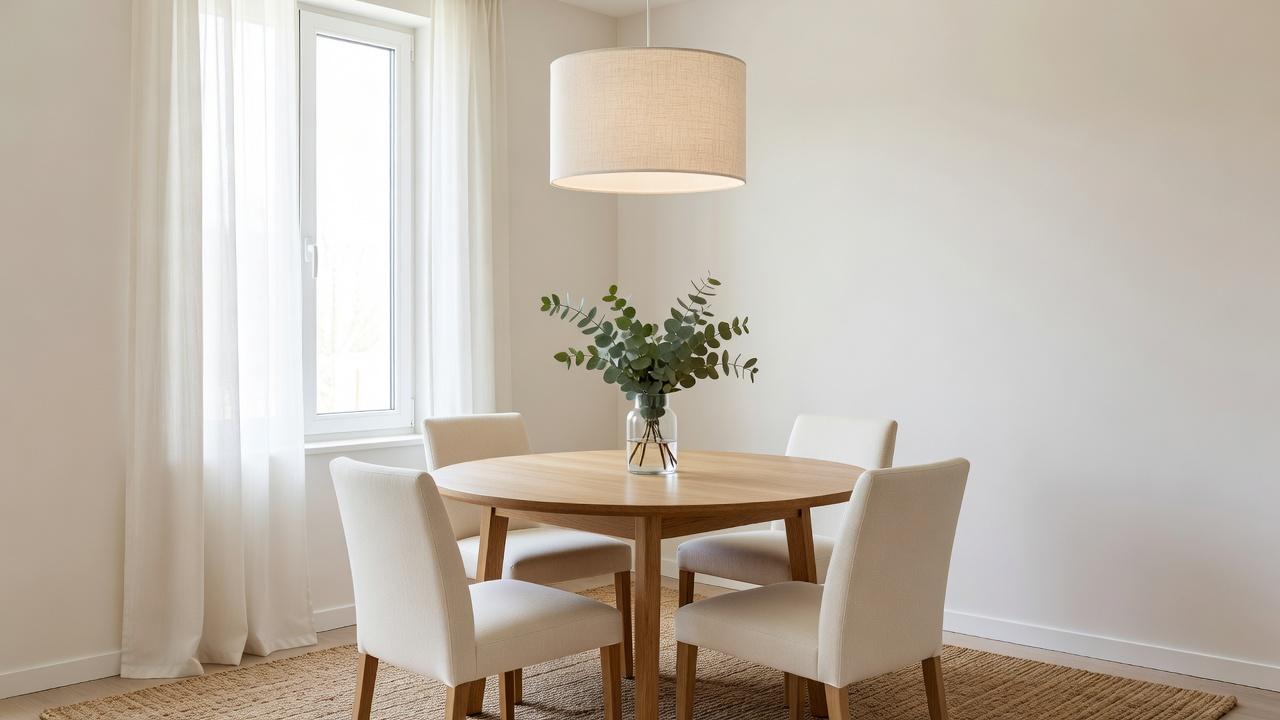
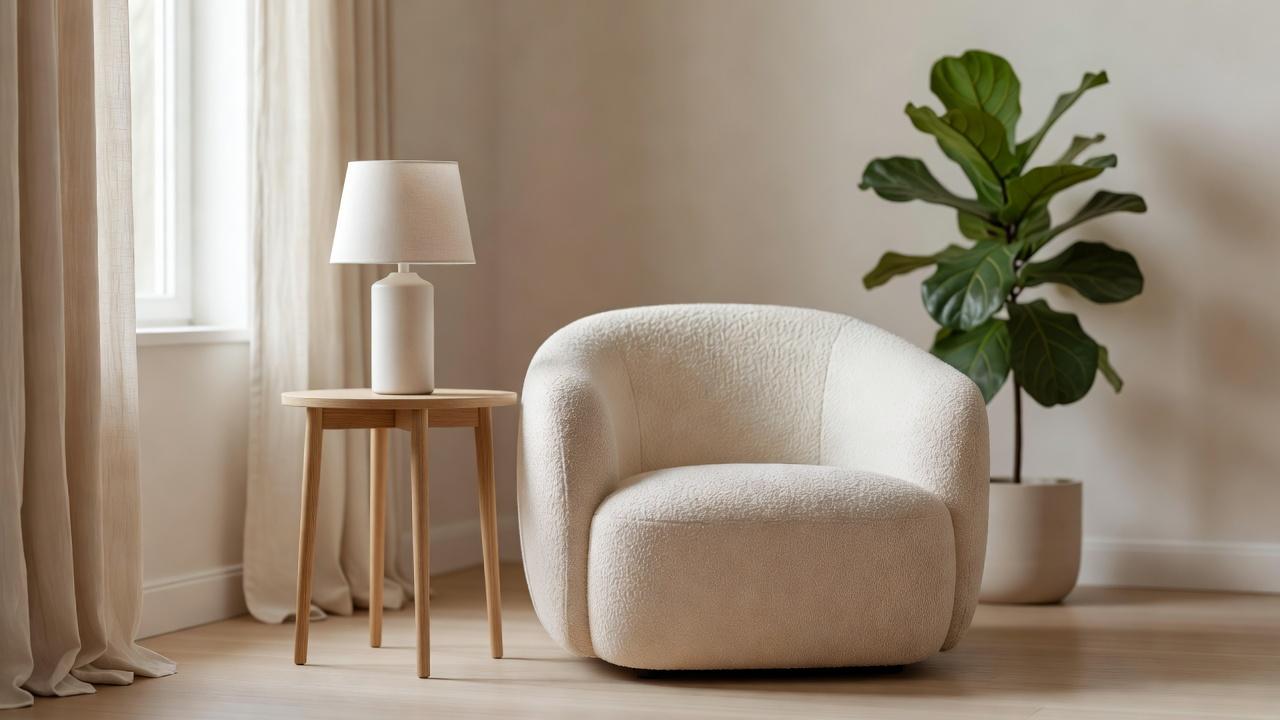
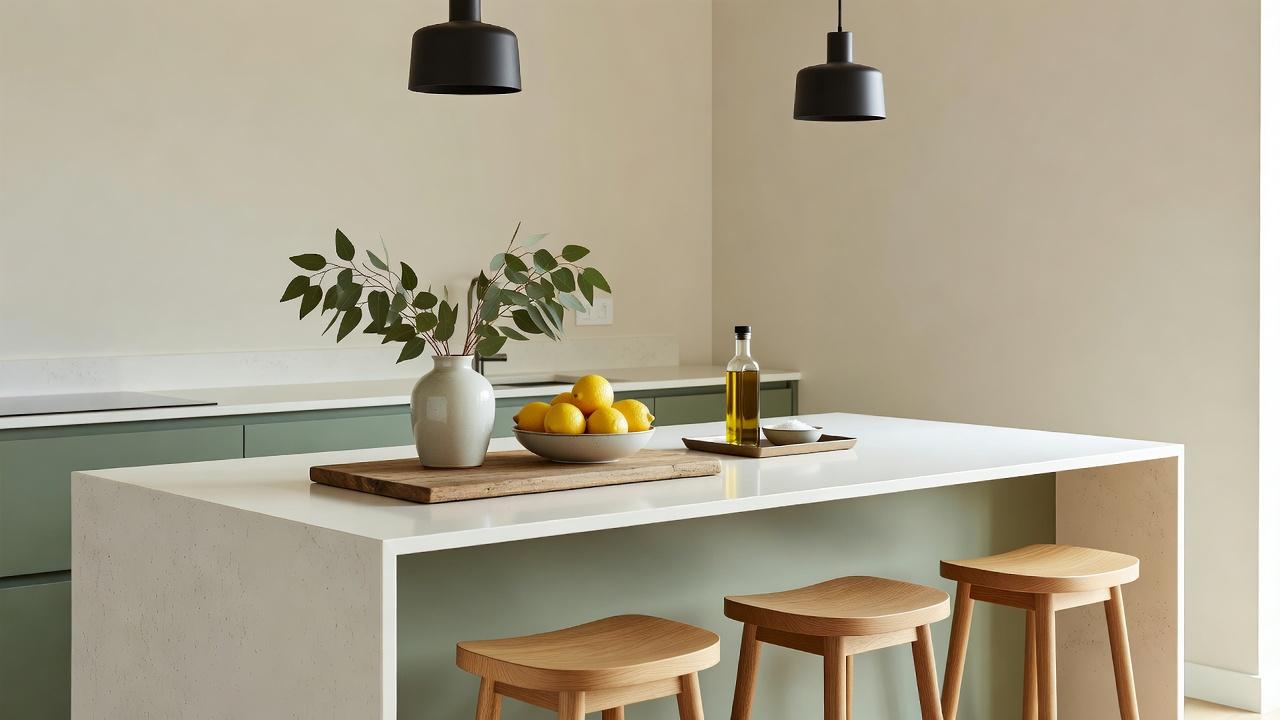
How to Get Different Versions of the Same Room With DecorAI
A step-by-step method for exploring one room in DecorAI: regenerate for a new take, vary one thing at a time across styles, colour schemes and design controls, fix single details with Inpainting, and compare every version in History.
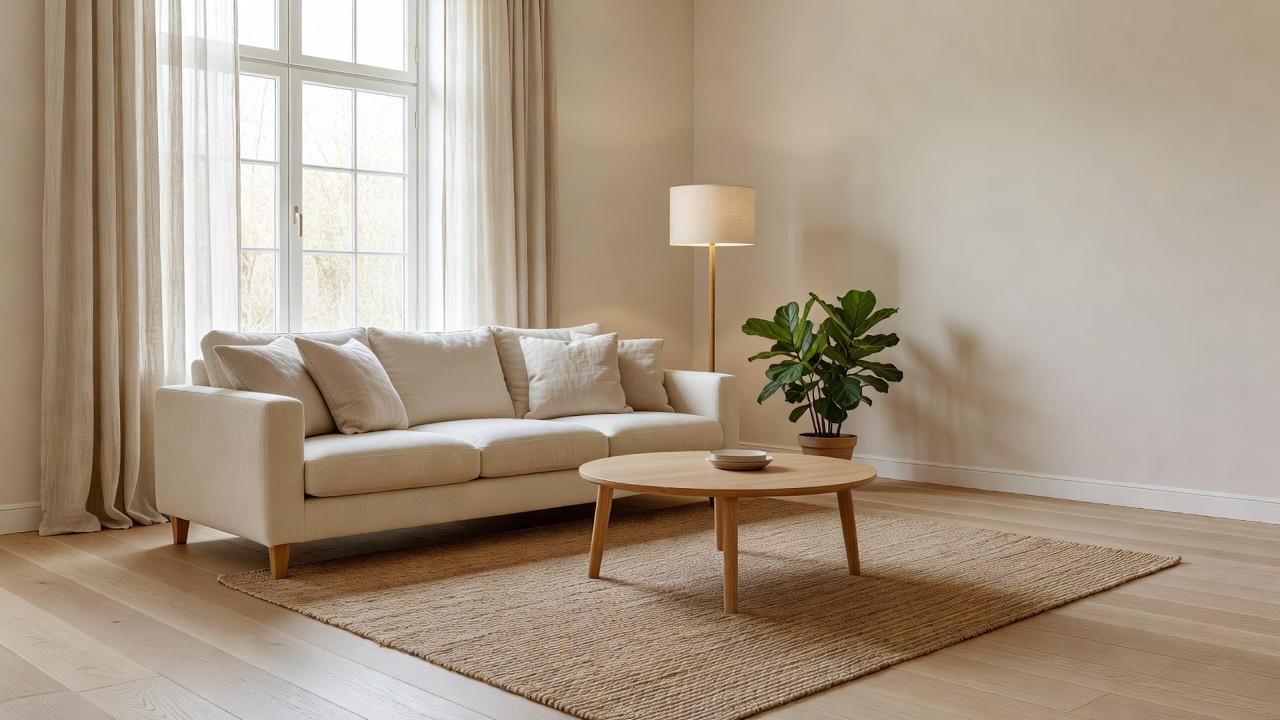
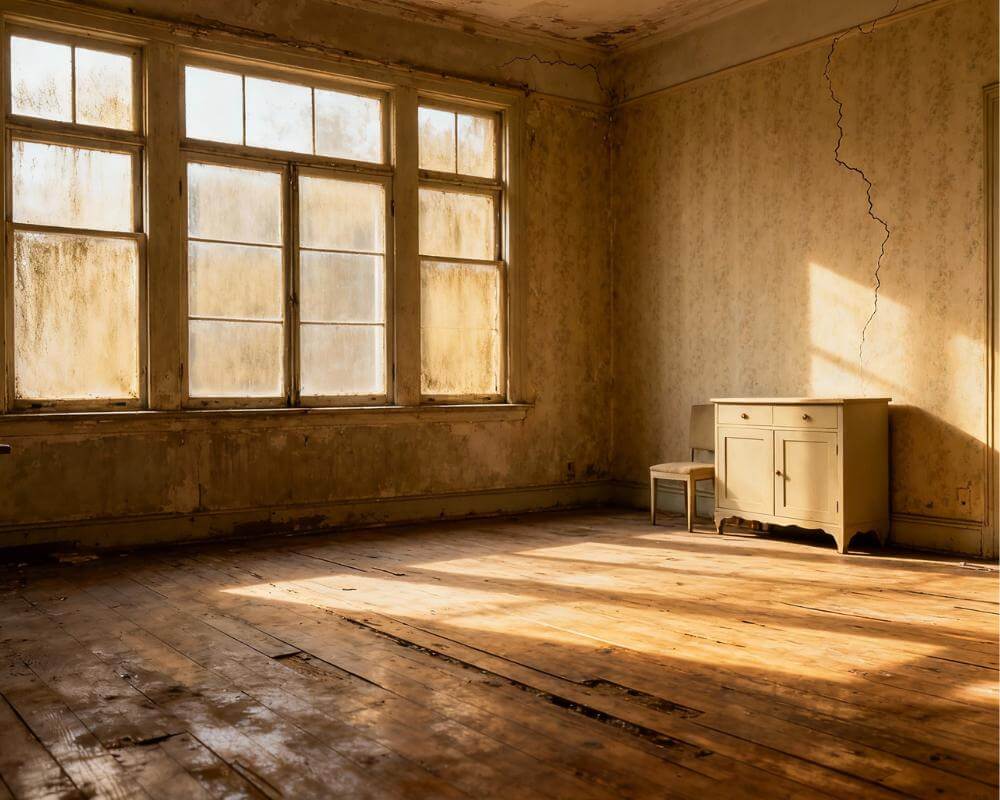
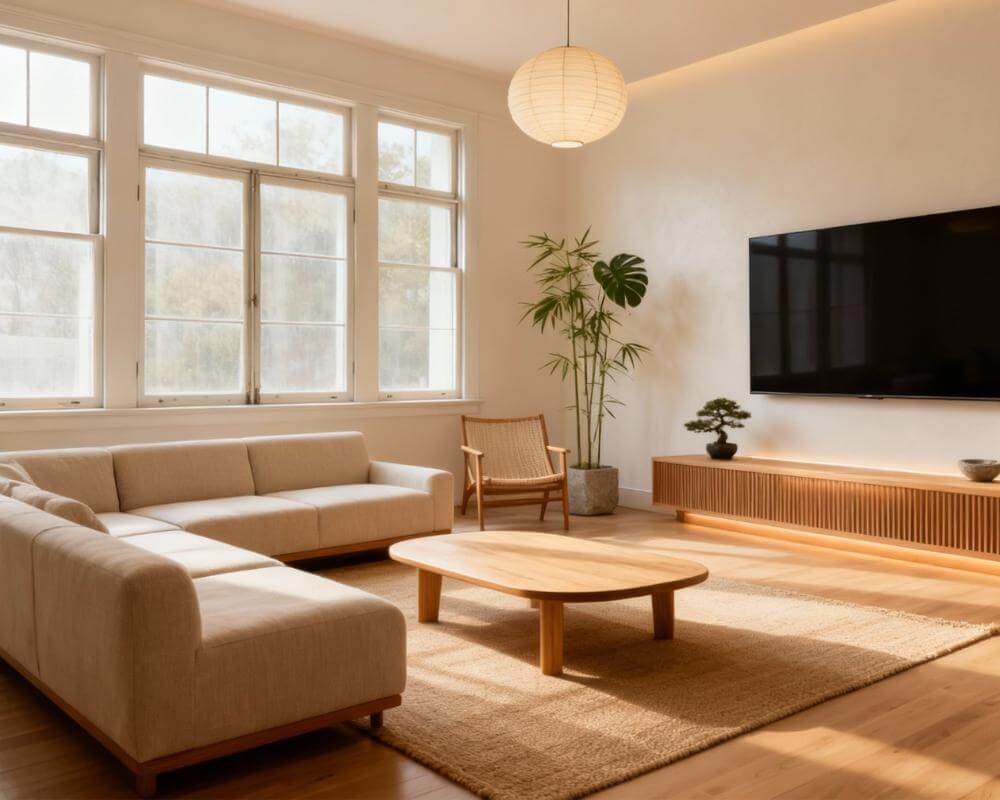
The first AI design of your room is rarely the one you keep. Maybe the style is right but the colours are not, or the mood is perfect and one lamp is wrong. The good news is that exploring a room is cheap: one photo can give you many different versions, and the trick is doing it with a method instead of pressing the button at random. DecorAI is an AI interior design app that lets users transform photos of existing rooms into realistic redesign concepts. This guide shows how to get genuinely different versions of the same room, how to keep the ones you like, and when to stop generating and start polishing.
It covers what Regenerate does, a four-round method that changes one variable at a time, how to compare versions side by side and how to avoid wasting free generations.
Key Takeaways
- Every generation is a fresh interpretation. Pressing Regenerate with the same settings is a legitimate way to get a new take on the same room.
- Change one variable at a time. Same photo, a different style, then a different colour scheme, then one design control. You will always know what caused the change.
- Work in rounds. Explore styles first, colours second, design controls third and single details last.
- Finish with Inpainting. Fixing one lamp with a brush beats regenerating the whole room and hoping everything else survives.
- Nothing is lost. Every generation is saved to History, so you can go back to an earlier version at any time.
- Try DecorAI on a photo of your own room. It offers three free generations per day without requiring an account or credit card.
Why Does One Room Need More Than One Version?
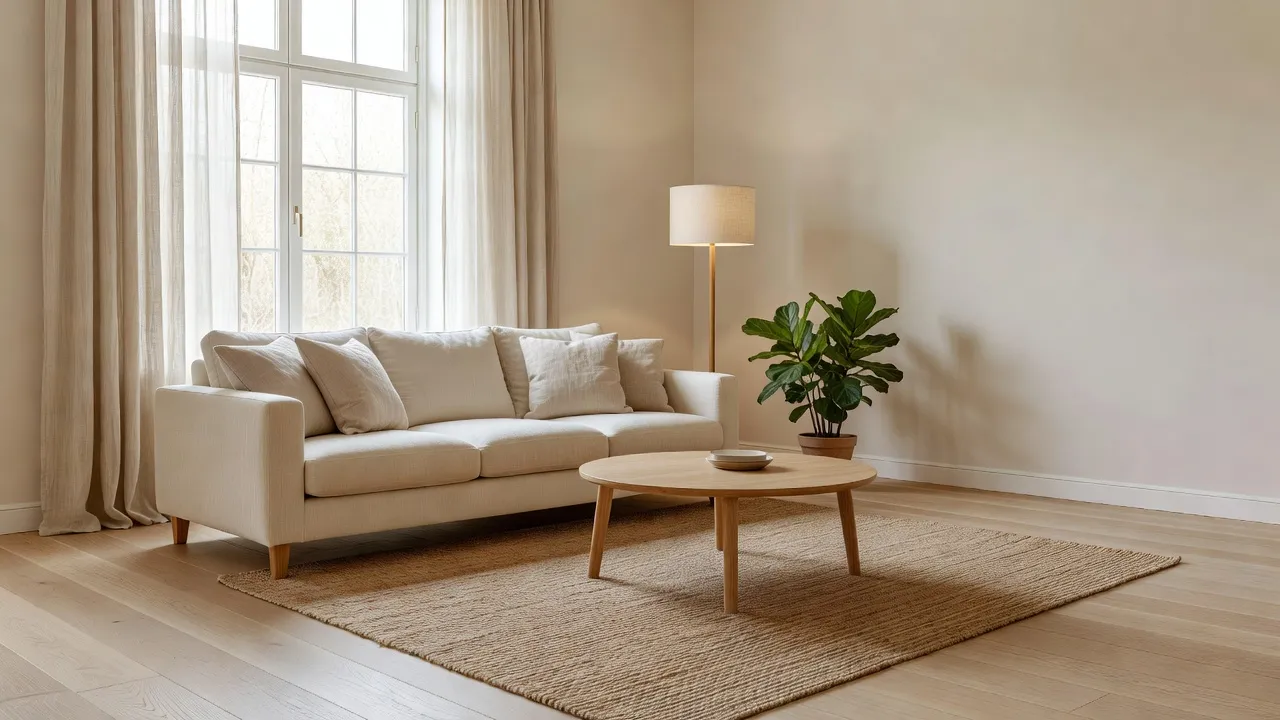
Because a single result tells you very little. You cannot judge a style from one picture, and you cannot tell whether you dislike the style or just this particular rendering of it. Several versions of the same room give you something to compare, and comparison is where decisions come from.
- You learn what you actually like. Seeing the same sofa position in three palettes quickly shows whether you want warm, cool or neutral.
- You separate the realistic from the ambitious. A faithful version tells you what you can do this month. A bolder one shows what the space could become.
- You can show other people. Partners, flatmates, clients and contractors respond better to two or three clear options than to one finished picture.
If you are earlier in the process, our guide to AI design concepts explains how to treat each result as an idea rather than a plan.
What Does Regenerate Do?
Regenerate runs the same photo with the same settings again and produces a new interpretation. DecorAI does not return an identical image every time: each generation is unique, and small details such as cushions, lamps, artwork and plant positions will vary between attempts, even when the overall style stays the same.
That makes Regenerate the right tool in two situations:
- The idea is right but the execution is off. If the style and colours work but one rendering looks odd, a second attempt is often the one you wanted.
- You want a few takes on a direction you already chose. Run it two or three times and pick the strongest.
Regenerate is not the right tool for exploring a different direction. If you want a new style, a new palette or a new feature in the room, change that setting deliberately instead of hoping the next roll lands somewhere different.
What Is the Four-Round Method?
The most reliable way to explore a room is to move from big decisions to small ones. Each round changes one kind of thing, so you always know what produced the difference you are looking at.
- Round 1: styles. Use the same photo, choose three different styles and change nothing else. DecorAI offers 60+ interior design styles, so pick three that are clearly distinct, for example one warm, one minimal and one dramatic.
- Round 2: colour schemes. Take the winning style and test two colour schemes inside it. DecorAI offers 40+ colour schemes; our guide to AI interior design colour schemes explains how to choose them.
- Round 3: design controls. Add one or two controls to the winner, such as lighting, an accent wall or plants. DecorAI has 30+ additional design options in five categories, and several compatible controls can be selected at once.
- Round 4: single details. Stop regenerating the whole room. Fix individual elements with the Inpainting editor.
Each round should produce two or three images, not ten. If you are on the free plan, with three free generations per day, a small number of well-chosen rounds will serve you far better than a pile of random attempts.
How Do Design Controls Change the Result?
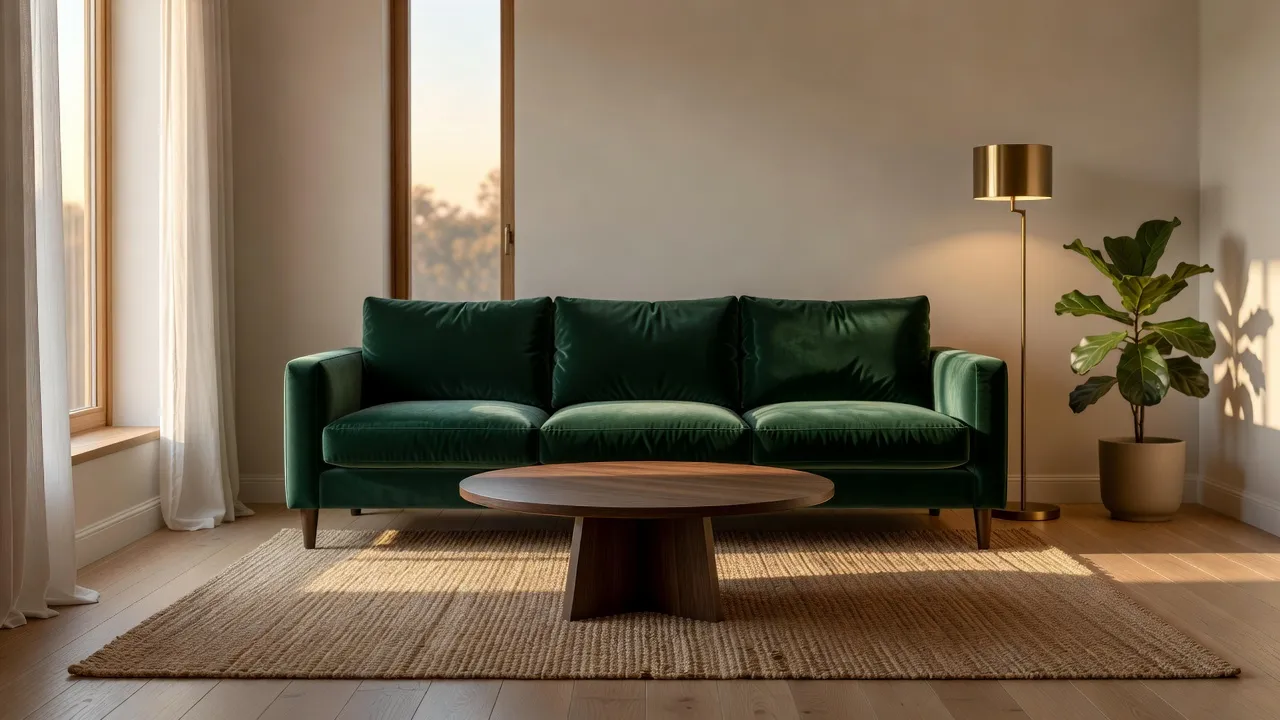
Design controls steer the AI beyond style and colour. Two groups matter most when you are exploring a room:
- Keep controls. Keep Room Details preserves the existing architecture and features as closely as possible, and Keep Exact Photo Angle holds the original camera position. Use them when you need every version to stay recognisable as your real room.
- Transform controls. Without the keep controls, the AI has more freedom to move furniture and re-imagine the space. Use that for inspiration or a larger renovation concept.
A useful habit is to run one faithful version and one ambitious version of the same room. The faithful one shows what you can realistically do soon. The ambitious one shows where the space could go. Our guide to how DecorAI design controls work explains every group in detail.
One warning: selecting many controls at once can pull the result in competing directions. Two or three controls per generation usually produce a cleaner image than ten.
Can I Steer the Versions With My Own Instructions?
Yes. You can add a short free-text instruction to ask for something specific, and you can write it in your own language. Keep it concrete: name materials, colours and objects, and say what must stay the same. For example, "keep the layout, replace the curtains with floor-length linen and add a large round jute rug".
To get versions that really differ, change the instruction, not the wording around it. Two near-identical prompts will give you two near-identical rooms, while one prompt about materials and another about layout will not. For more examples of instructions that work, read our guide to AI interior design prompts.
Explore Your Room in Several Versions
Upload one photo, try a few styles and colour schemes, and compare the results side by side before you spend anything on the real room.


When Should I Use Inpainting Instead of Regenerating?
As soon as the overall design is right. Regenerating the whole room to fix one lamp is a gamble, because the sofa, rug and curtains you liked may all change with it. The Inpainting editor changes only the area you paint with a brush and leaves the rest of the image as it was.
- Zoom in and paint slightly beyond the object, including its shadow.
- Keep the mask tight. Masking half the room turns inpainting into a full redesign.
- Describe only what should appear in the masked area, for example "a brass arc floor lamp", not "a nicer room".
- Repeat for each detail you want to change: a lamp, a rug, a piece of art.
For a full walk-through, see our guide to the AI Inpainting editor. If you have a reference look in mind, such as a fabric, an artwork or a photo you love, Style Transfer can apply it to the whole room instead.
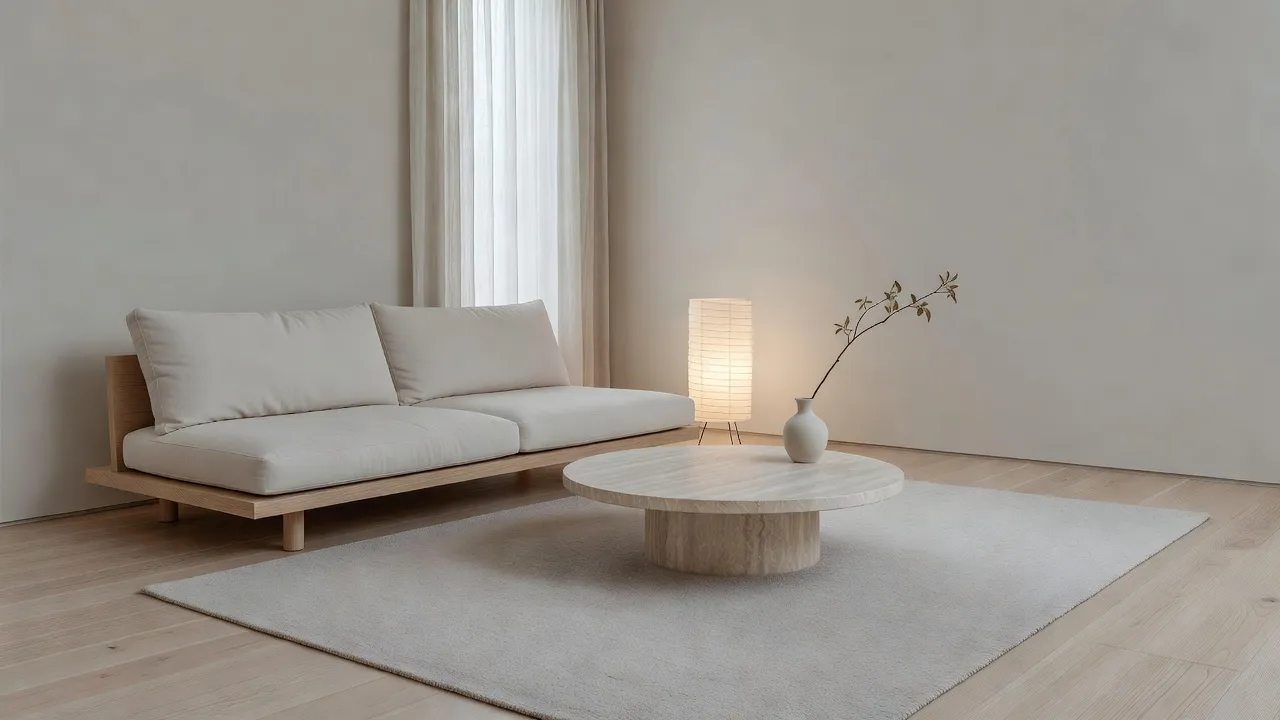
How Do I Compare the Versions?
Every finished DecorAI design opens with a before-and-after comparison that you can drag to reveal the original photo underneath. Use it for two checks on every version: do the windows, doors and proportions still line up with your real room, and does the change look worth making?
If the slider shows that a window has moved or the room has changed shape, regenerate with Keep Exact Photo Angle enabled. For ideas on presenting the results, see our gallery of before and after transformations.
Every generation is saved automatically to History, together with the original photo and the settings you used. That means you can reopen an earlier version, compare it with a newer one or go back to a direction you had abandoned. History is stored in your account and appears on your phone, tablet and the web app. If you use DecorAI without signing in, History exists only on that device, so sign in before you build up work you care about.
For a whole home, you can group the versions of each room in a Project. Our guide to DecorAI Projects and History explains how.
Does the Starting Photo Matter?
More than anything else. Every version inherits the geometry of the photo, so a tilted, dark or wide-angle shot gives you tilted, dark or distorted versions however carefully you vary the settings. Hold the camera level, shoot from a corner or doorway, use daylight and keep the room reasonably tidy. Our guide on how to photograph your room for AI design covers the details.
What Mistakes Should I Avoid?
- Changing everything at once. If style, colour and controls all change between two images, you cannot tell which change you liked.
- Mixing too many styles in one request. Four competing styles in a single instruction produce a muddled room.
- Regenerating to fix a small detail. Use Inpainting instead.
- Stacking too many controls. Two or three per generation is usually plenty.
- Treating the image as a plan. A version is a visual concept. Check real dimensions before you buy furniture or order work.
Getting Different Versions: FAQ
How do I get a different version of the same room in DecorAI?
Press Regenerate for a new interpretation with the same settings, or change one variable at a time: the style, the colour scheme or one design control. Changing one thing at a time makes it clear what caused the difference.
Will Regenerate give me exactly the same image again?
No. Every generation is a fresh interpretation, so details such as cushions, lamps and artwork will differ even when the settings are identical.
Are my earlier versions saved?
Yes. Every generation is saved to History, so earlier versions stay available and nothing is overwritten.
How do I change only one thing in a design?
Use the Inpainting editor. Paint over the area, describe what should be there instead and DecorAI edits just that region while the rest of the image stays as it was.
Is it free to try several versions?
DecorAI offers three free generations per day without requiring an account or credit card. Free generations are unlocked by watching a short rewarded video advertisement.
Conclusion
Getting good versions of a room is a method, not luck. Start with a clean photo, explore three styles, narrow to one, test a couple of colour schemes, add one or two design controls and then polish single details with Inpainting. Compare each version with the original using the before-and-after slider and keep the best ones in History. When you are ready, upload a photo to DecorAI and try the four rounds on your own room. For more ideas, explore the full DecorAI feature directory.
Visualize Your Dream Home Instantly
Don't just read about it. Experience the power of AI interior design with DecorAI's free tool.
Start Designing for FreeWritten by
DecorAI Team
Editorial Team