How to Use AI Interior Design Apps: Complete Beginner's Guide 2025
Learn how to use AI interior design apps step-by-step. This beginner's guide covers photo tips, style selection, prompt writing, and getting the best AI room design results.
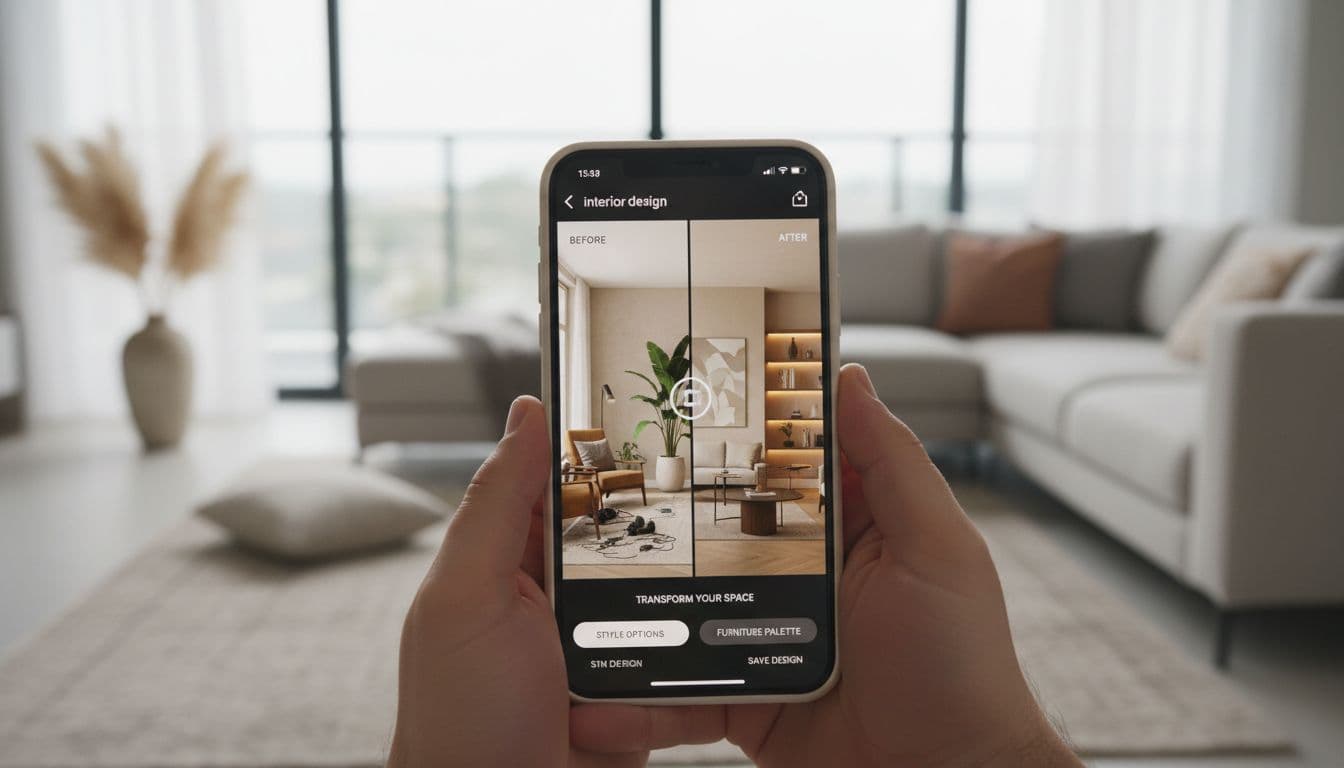

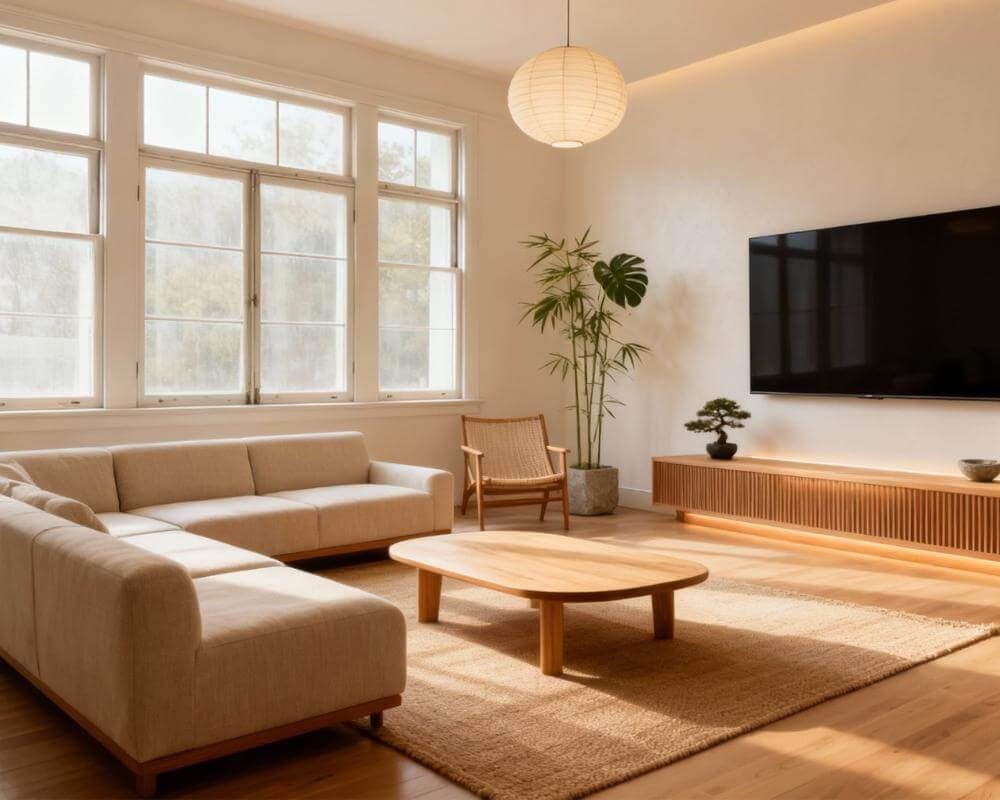
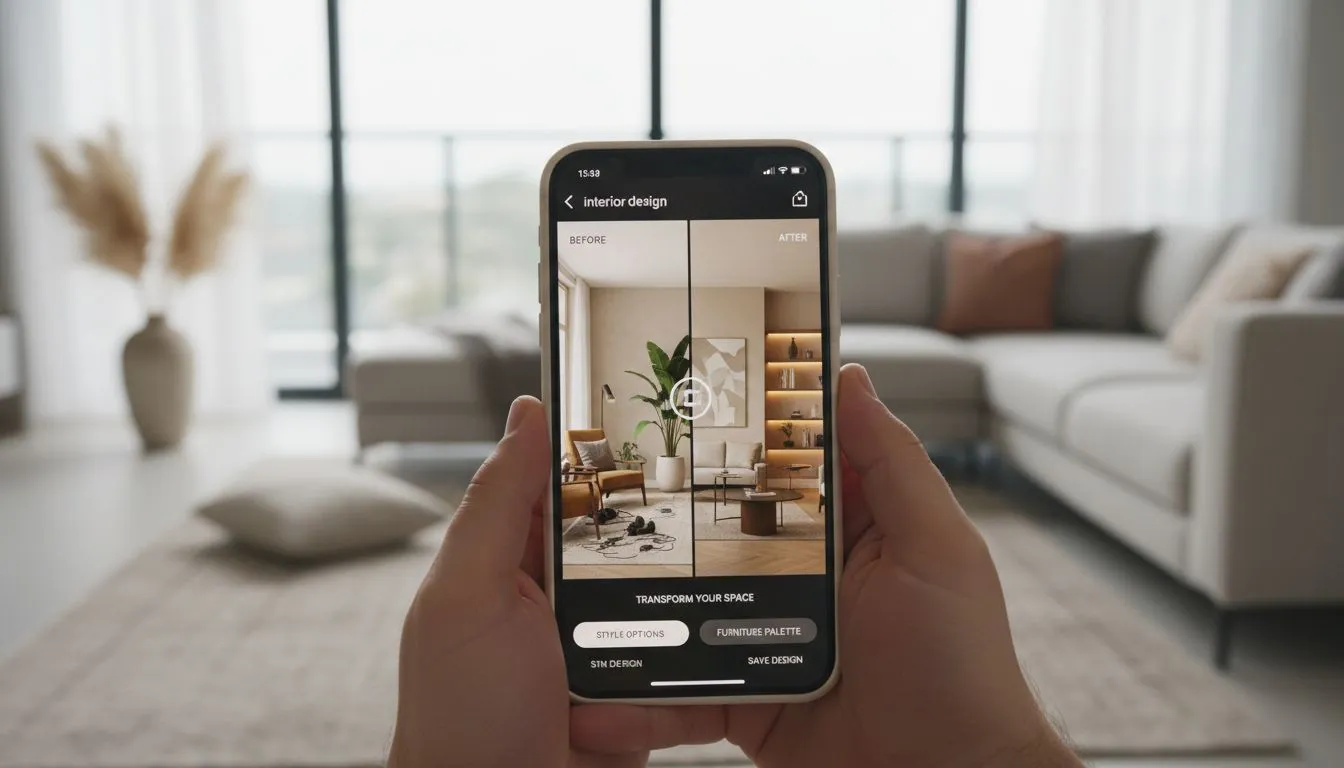
You've downloaded an AI interior design app, opened it up, and now you're staring at the screen wondering: "What do I actually do?" You're not alone. While AI interior design tools are incredibly powerful, getting great results requires knowing a few key techniques. This guide will take you from complete beginner to confident user in about 10 minutes.
Whether you're using DecorAI, another AI room design app, or just exploring your options, these principles apply universally. Let's dive into exactly how to use AI interior design apps to transform your space.
Step 1: Take the Perfect Photo
Your results are only as good as your input photo. Here's how to capture images that AI tools can work with effectively:
Lighting Matters Most
Photograph during the day with natural light. Open curtains and blinds. Avoid shooting at night with only artificial lighting—AI struggles to understand room dimensions and colors in low light. The ideal time is mid-morning or afternoon when light is bright but not creating harsh shadows.
Camera Position and Angle
Stand at the room's entrance or in a corner to capture the widest view. Hold your phone at chest height—not too high, not too low. Keep the camera level (no tilting up or down). Most importantly: keep vertical lines vertical. Doors, windows, and walls should appear straight, not leaning.
What to Include (and Exclude)
- Include: Major architectural features (windows, doors, built-ins), flooring, ceiling if possible
- Exclude: People, pets, moving objects, excessive clutter
- Pro tip: A moderately tidy room works better than an empty one—AI needs context to understand scale
Step 2: Choose the Right Mode
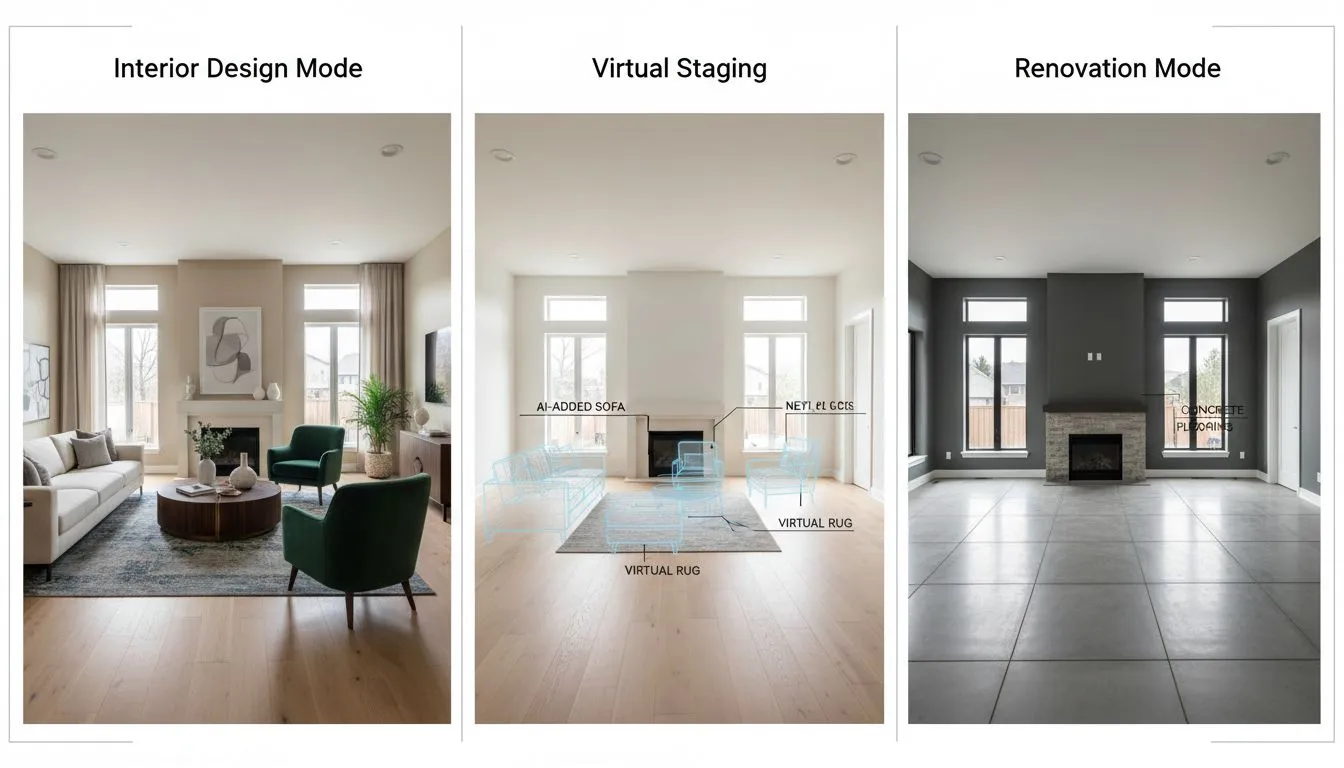
Most AI interior design apps offer different modes for different purposes. Understanding these is crucial for getting the results you want:
Interior Design Mode
Best for: Furnished rooms you want to restyle. This mode keeps your room's basic structure but changes furniture, colors, and decor. Use this when you want to see "what if I changed the style?" without starting from scratch.
Virtual Staging Mode
Best for: Empty rooms that need furniture. AI adds furniture and decor to bare spaces. Perfect for new apartments, recently vacated rooms, or real estate staging. Learn more in our virtual staging guide.
Renovation Mode
Best for: Structural changes like new flooring, wall colors, or fixtures. This mode can show you the room with different paint colors, flooring materials, or even removed walls. Great for planning major updates.
Step 3: Select Your Style
This is where the fun begins. AI room design apps typically offer dozens of style presets. Here's a quick guide to popular options:
| Style | Best For |
|---|---|
| Scandinavian | Light, airy spaces; small rooms |
| Modern | Clean lines; contemporary homes |
| Mid-Century Modern | Retro vibes; statement furniture |
| Industrial | Lofts; exposed architectural elements |
| Bohemian | Eclectic, colorful, layered looks |
| Minimalist | Decluttered, serene spaces |
| Farmhouse | Warm, rustic, cozy atmospheres |
Pro tip: Don't just try one style. Generate at least 5-10 different options. You might discover you love a style you never considered. Check our complete style guide for more options.
Step 4: Write Effective Prompts (Advanced)
Many AI design app tutorials skip this crucial step. If your app supports text prompts, use them! Here's how to write prompts that get results:
Be Specific About Colors
Instead of "blue living room," try "living room with navy blue velvet sofa and warm brass accents." Specific color descriptions help AI understand exactly what you want.
Mention Key Furniture
Want to keep certain elements? Include them: "Scandinavian bedroom keeping the existing wooden bed frame." Want something specific added? Say so: "Modern kitchen with marble waterfall island."
Describe the Mood
Words like "cozy," "bright," "dramatic," "serene," or "energetic" help AI understand the feeling you're after, not just the visual style.
Example Prompts That Work
- "Warm minimalist living room with cream walls, natural wood furniture, and lots of plants"
- "Moody home office with dark green walls, brass desk lamp, and leather chair"
- "Bright coastal bedroom with white bedding, rattan accents, and ocean blue pillows"
Step 5: Iterate and Refine
Your first result probably won't be perfect—and that's okay. Here's the iteration process that gets the best outcomes:
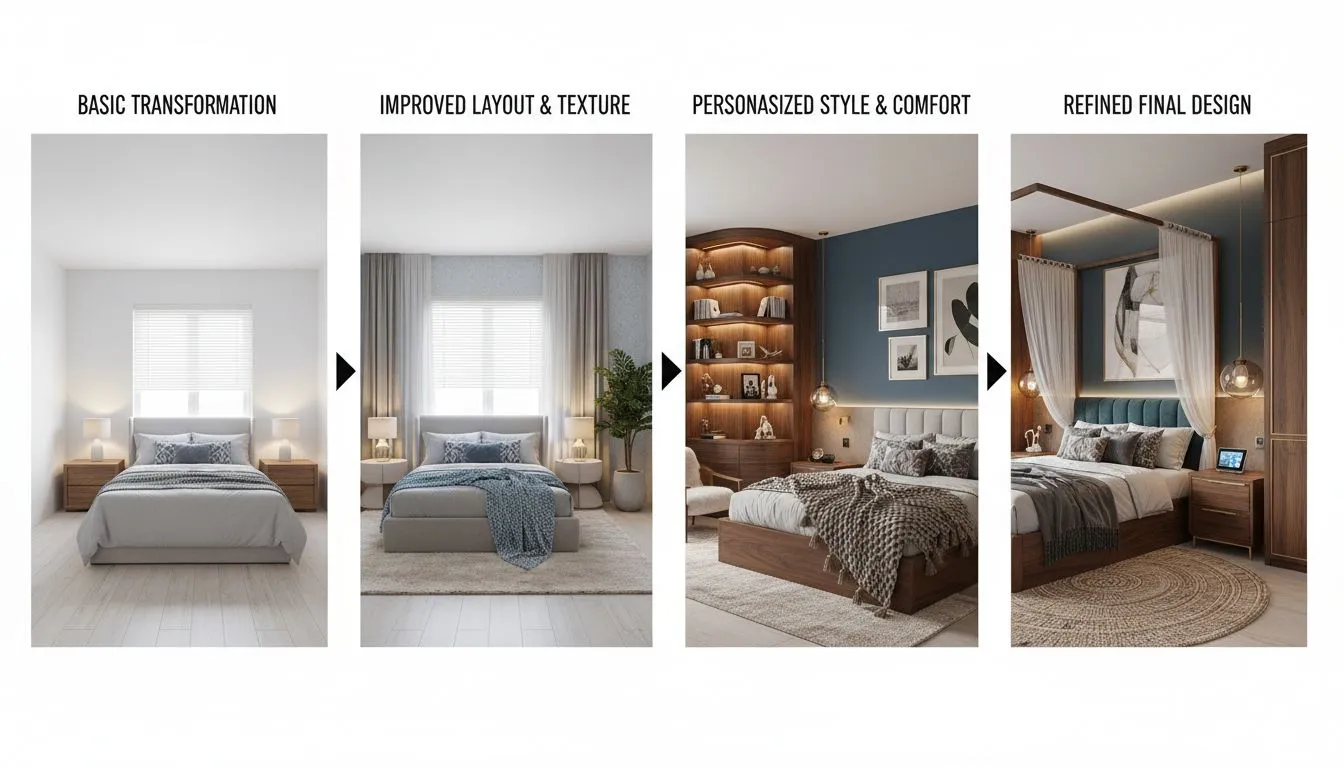
- Generate multiple options: Create 5-10 variations with the same photo
- Identify what works: Note specific elements you like from each
- Refine your prompt: Combine winning elements in a new prompt
- Try different angles: Upload photos from different positions in the room
- Save everything: Keep a folder of your favorites for reference
Common Mistakes to Avoid
After analyzing thousands of user sessions, here are the most common mistakes beginners make with AI interior design apps:
1. Poor Photo Quality
Blurry, dark, or extremely wide-angle photos confuse AI. If your phone has multiple lenses, use the standard (1x) lens, not ultra-wide.
2. Expecting Exact Matches
AI generates interpretations, not product catalogs. Use results as inspiration and mood boards, not shopping lists. The specific sofa in your AI image might not exist—but you can find something similar.
3. Ignoring Scale
AI might suggest furniture that looks great but wouldn't actually fit. Always verify dimensions before purchasing anything based on AI suggestions. Our room layout guide can help with spatial planning.
4. Settling for the First Result
The magic happens in iteration. Users who generate 10+ variations consistently get better outcomes than those who stop at one or two.
What to Do With Your AI Designs
You've generated some amazing designs. Now what? According to Houzz, the most successful home projects start with clear visual references. Here's how to use your AI creations:
- Create a mood board: Compile your favorite AI images into a cohesive vision
- Extract color palettes: Use color-picking tools to identify exact paint colors
- Shop with purpose: Search for furniture that matches the style and scale shown
- Share with professionals: Show AI designs to contractors, painters, or designers
- Plan your budget: Prioritize changes that will have the biggest impact
For inspiration on what's possible, check out our before and after transformations gallery.
Conclusion
Learning how to use AI interior design apps effectively is a skill that pays off immediately. With good photos, the right mode, thoughtful style selection, and iterative refinement, you can visualize your dream space in minutes—not months.
The key is experimentation. Try different styles, write detailed prompts, and don't be afraid to generate dozens of variations. The perfect design is often hiding just a few clicks away.
Now you have all the knowledge you need. The only thing left is to start creating.
Ready to Try It Yourself?
Put these tips into practice. Upload a photo, choose a style, and see your room transformed in seconds.
Start Designing Free
From Beginner to Pro
in Minutes
Join millions transforming their homes with AI. Download now and start designing your dream space.


Visualize Your Dream Home Instantly
Don't just read about it. Experience the power of AI interior design with DecorAI's free tool.
Start Designing for FreeWritten by
DecorAI Team
Editorial Team